
Adding Contact Information and Sharing Access to an Application
Overview
The first section in a chemical application form is the Application information. This consists of the General information, Product information, and Substitution subsections. You can add contact information and share access to the application in the General information subsection.
How to
The company and email in your account profile are associated in the application by default as Company and Email (log in). These details can’t be changed as they are pre-populated from your organization account. However, you can specify the email address where application updates will be sent. You can also add a contact number to the application and share access to the application to other people, departments, or roles.
The details in this section may be filled out at any order.
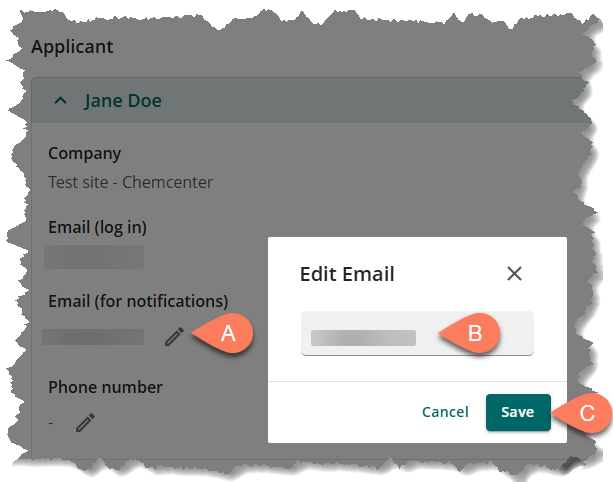
Edit email address for notifications
To change the email address where you’d like receive application notifications,
- Click the pencil button for the A Email (for notifications) field.
- In the Edit Email pop-up, enter the B email address.
- Click the C Save button.
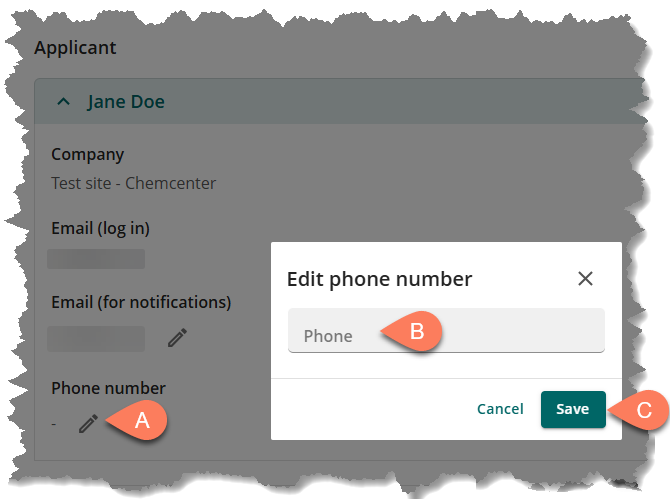
Add a contact number
To add a contact number to the application,
- Click the pencil button under A Phone number.
- In the Edit phone number pop-up, enter the B contact number.
- Click the C Save button.
Share access to the application
If you’d like other users to have access to the application and receive email notifications on its status changes, fill out the Inform others section. Follow the steps below.
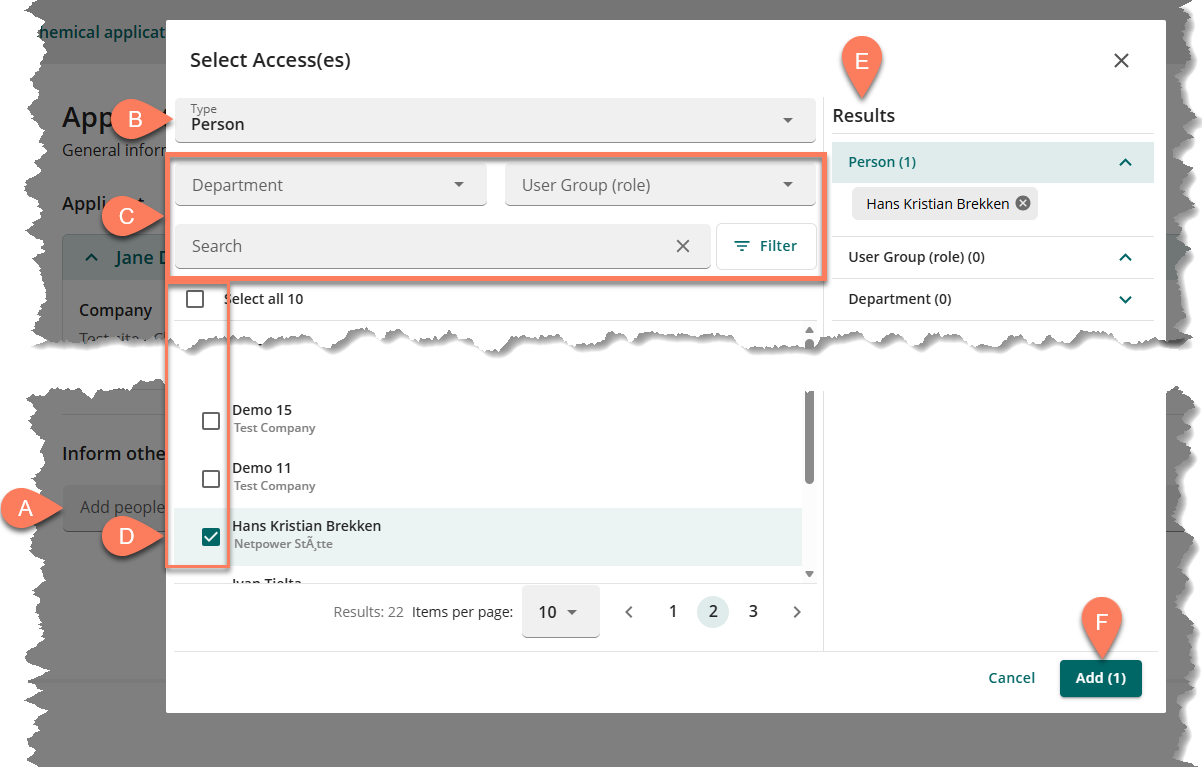
- Click the field under A Inform others.
- In the pop-up Select Access(es) window, the default B Type selected at the top is Person so all users will be listed. Use the C filter and search controls at the top to narrow down the list.
- To display User Group (role) or Department instead of individual users, click the Type dropdown button and select the preferred type.
- Select the D checkbox beside the person, user group, or department you’d like to give access to the application. You can select multiple.
- The selected user will be displayed under the Person section in the E Results column on the right.
- Click the F Add button.
After configuring contact information in the general information section, click the Save and next button at the bottom right corner of the screen to continue and provide the Product information.