
Manually Uploading Safety Data Sheets to an Application
User Roles
- Read-only
- Administrator
Overview
To add Product information to an application, you can either A Add product from database or B Upload data sheet manually. The first option is more commonly used given the large collection of Safety Data Sheets (SDS) in ChemCenter’s database. Previously added SDS to your Organization database may also be added to to the application using the first option. However, if the SDS related to the product is not available in either database, you may manually upload it to the application.
Manually uploading data sheets to add products to an application requires four steps: uploading data sheet, extracting information, verifying extracted information, then completing the upload.
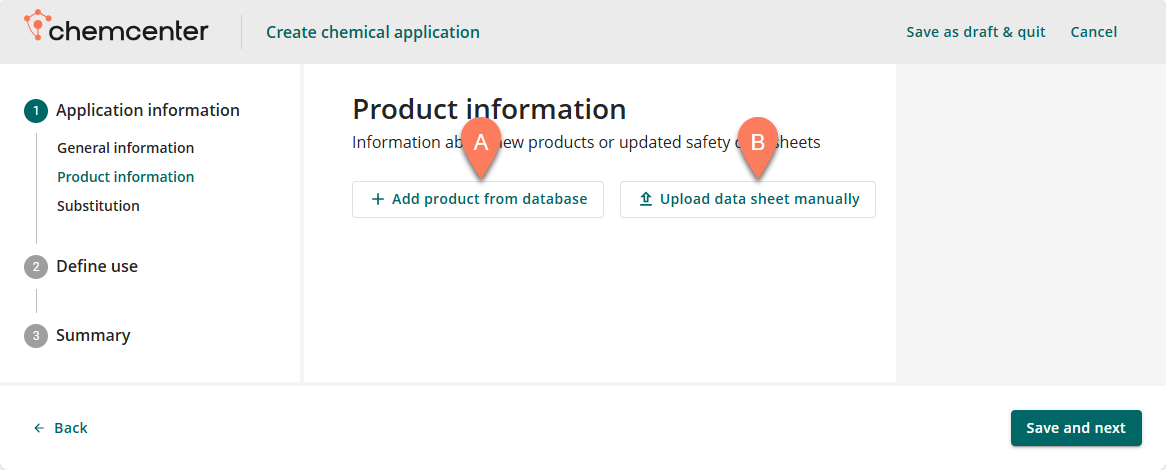
This article covers the process of uploading a safety data sheet to add to an application.
How to
Upload data sheet
When you click the Upload data sheet manually button, your computer’s file manager will pop-up. Navigate to where the data sheet is located and double-click on it to open and upload it to ChemCenter.
Extract information from data sheet
Once a data sheet is uploaded, ChemCenter automatically extracts information from it. The status of the data sheet will be displayed as Extracting while the data sheet is being processed. ChemCenter organizes the extracted information into 16 sections without any user-input. This process may take a few minutes.
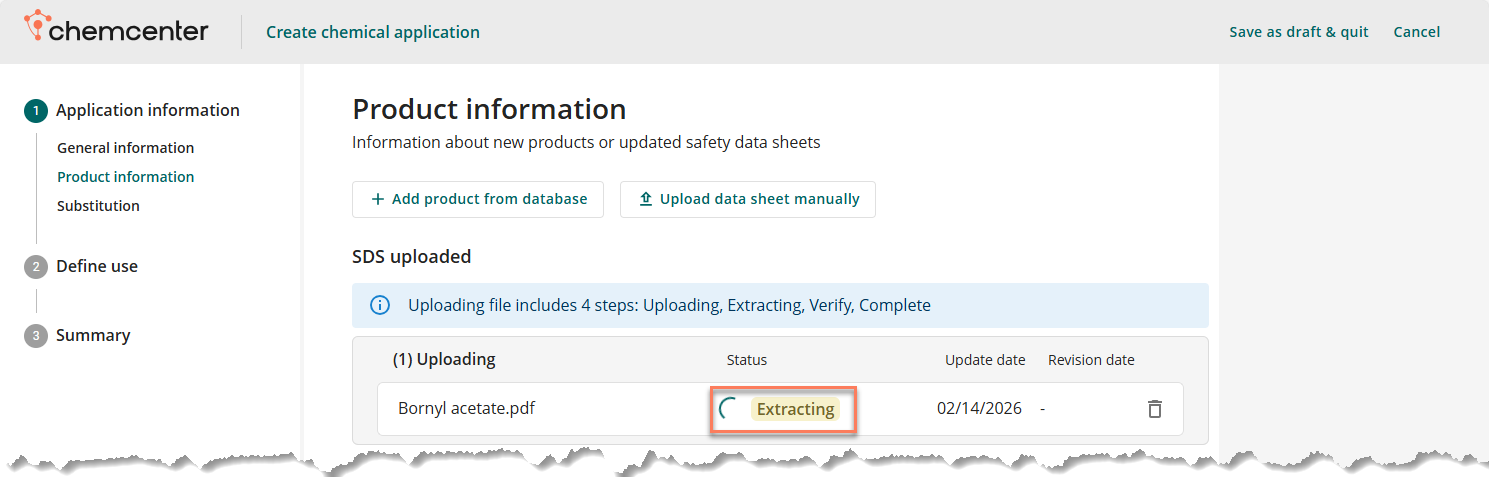
Verify extracted information
Verification of the extracted information must be completed to ensure that it’s complete and accurate. When the extracted information is ready for verification, the status of the uploaded data sheet will change to the Verify button. To start the verification, click the Verify button.
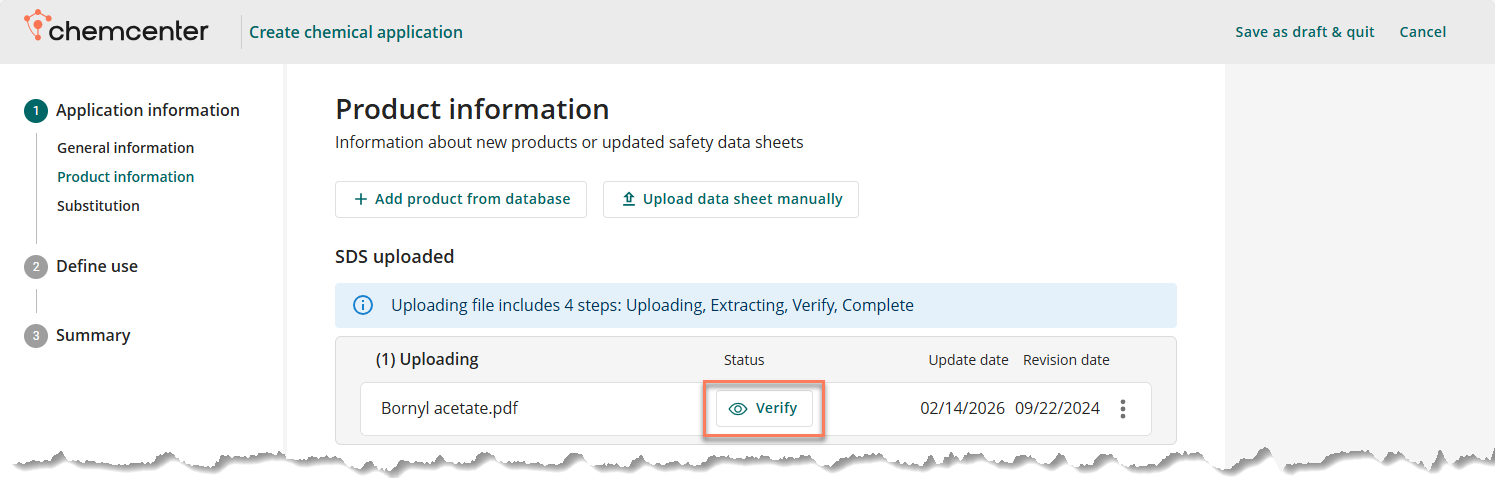
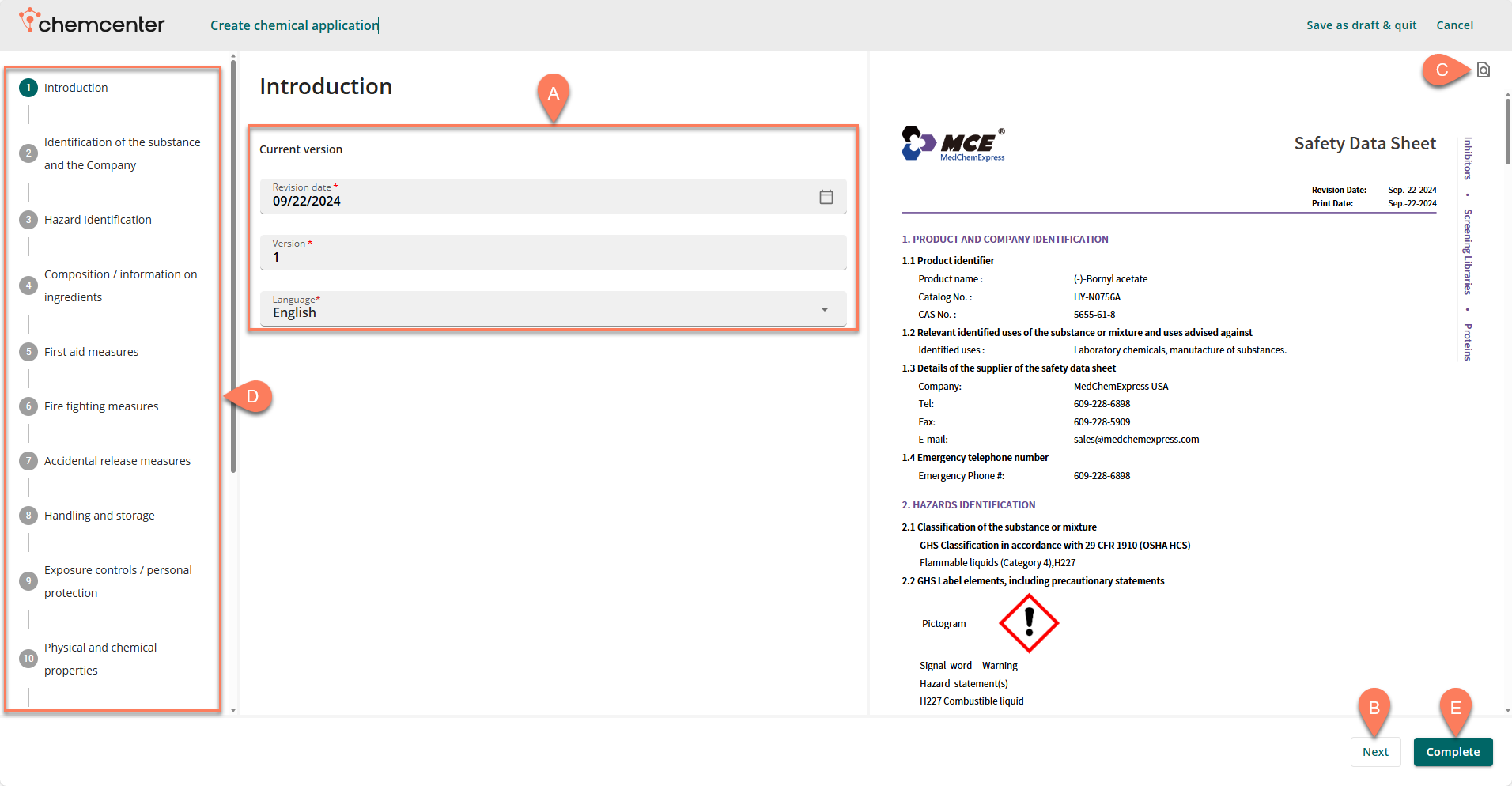
Follow the steps below to verify the extracted information.
- Ensure that the A Introduction information is completely filled out.
- Click the B Next button.
- Review the remaining sections to ensure information accuracy.
- Ensure that key details such as Substance name, Supplier info, and Hazard Idenftification are correctly extracted. The uploaded data sheet is displayed on the right-hand side of the screen for reference.
- Use the C Find button to easily search for information.
- Use the Next button at the bottom or the D navigation pane on the left to navigate through sections.
- After reviewing all the sections, click the E Complete button.
After verification, the SDS is automatically added to your Organization Database and may be used in future applications.
Add product information
All applications require information used to evaluate the added product(s) for health, safety, and environment risk and hazard. The information required are location, reason for applying, and usage category. These details may be added to the selected products one-by-one or simultaneously.
Follow the steps below.
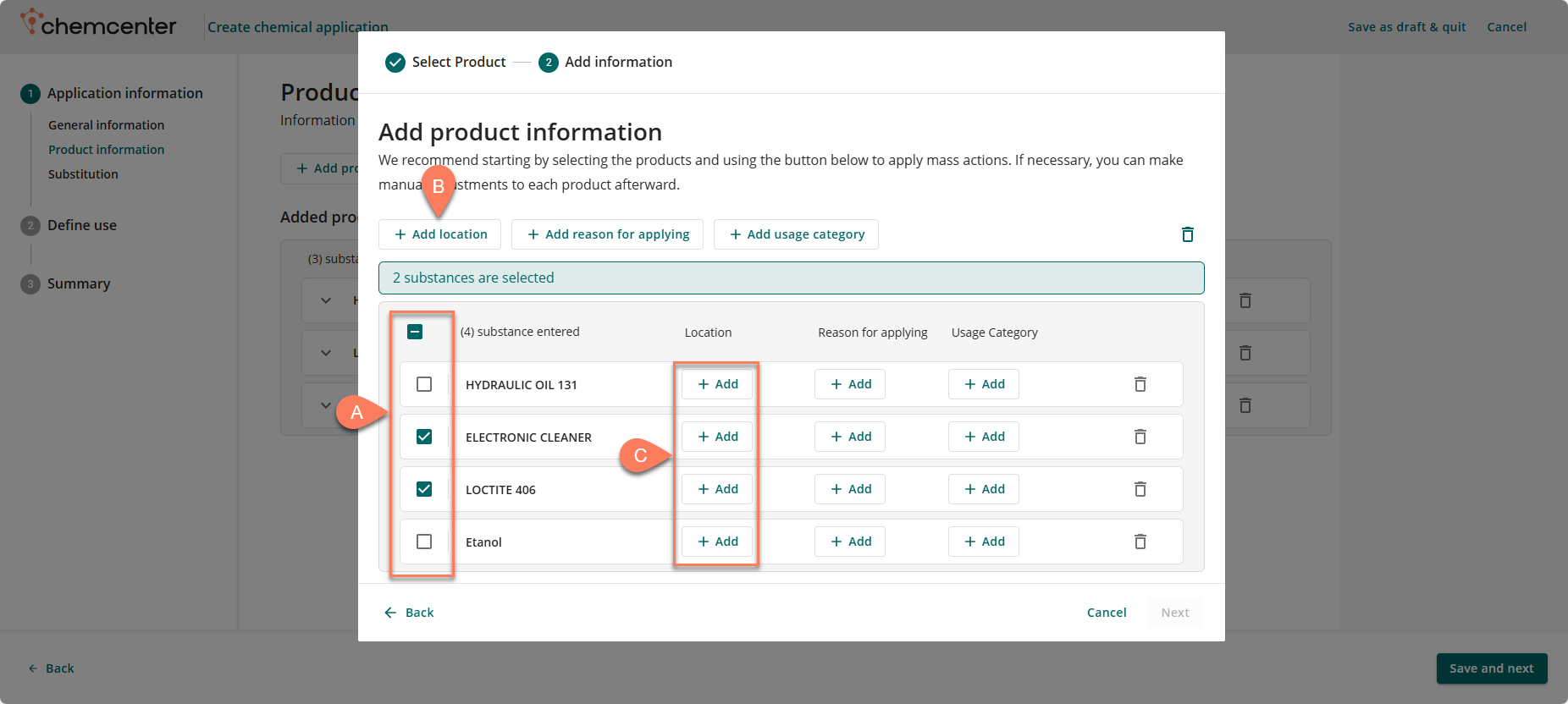
- If you’d like to add the details simultaneously for multiple products, select their corresponding A checkboxes.
- To select all products, click the checkbox on the header.
- To add the location where the product(s) will be used:
- If you have multiple products selected, click the B Add Location button at the top.
- For a single product, click the corresponding C Add button in the Location column.
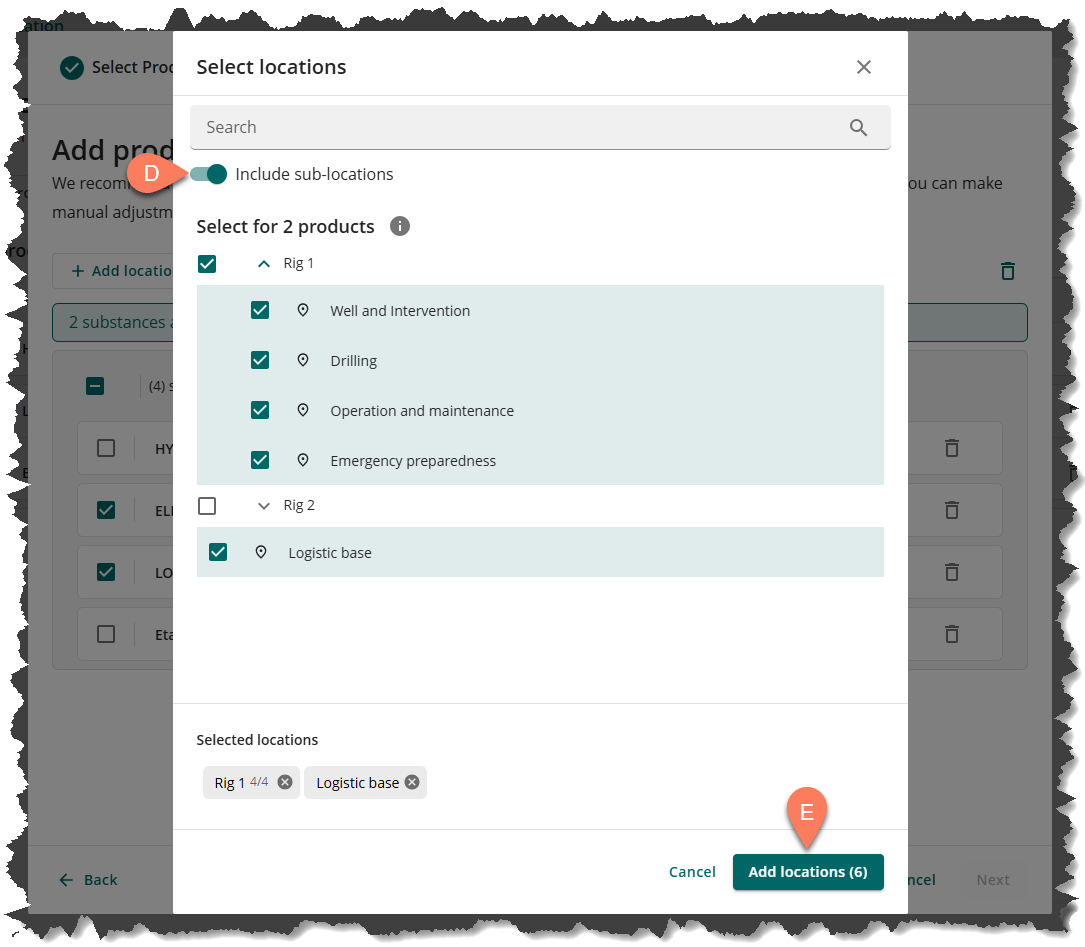
- In the Select locations window, select the locations and sub-locations where the product will be used.
-
- Click the D Include sub-locations toggle at the top so all sub-locations of a selected location will also be selected.
- Once all locations are selected, click the E Add locations button at the bottom right.
- Repeat the same process using the corresponding buttons to Add reason for applying and to Add usage category.
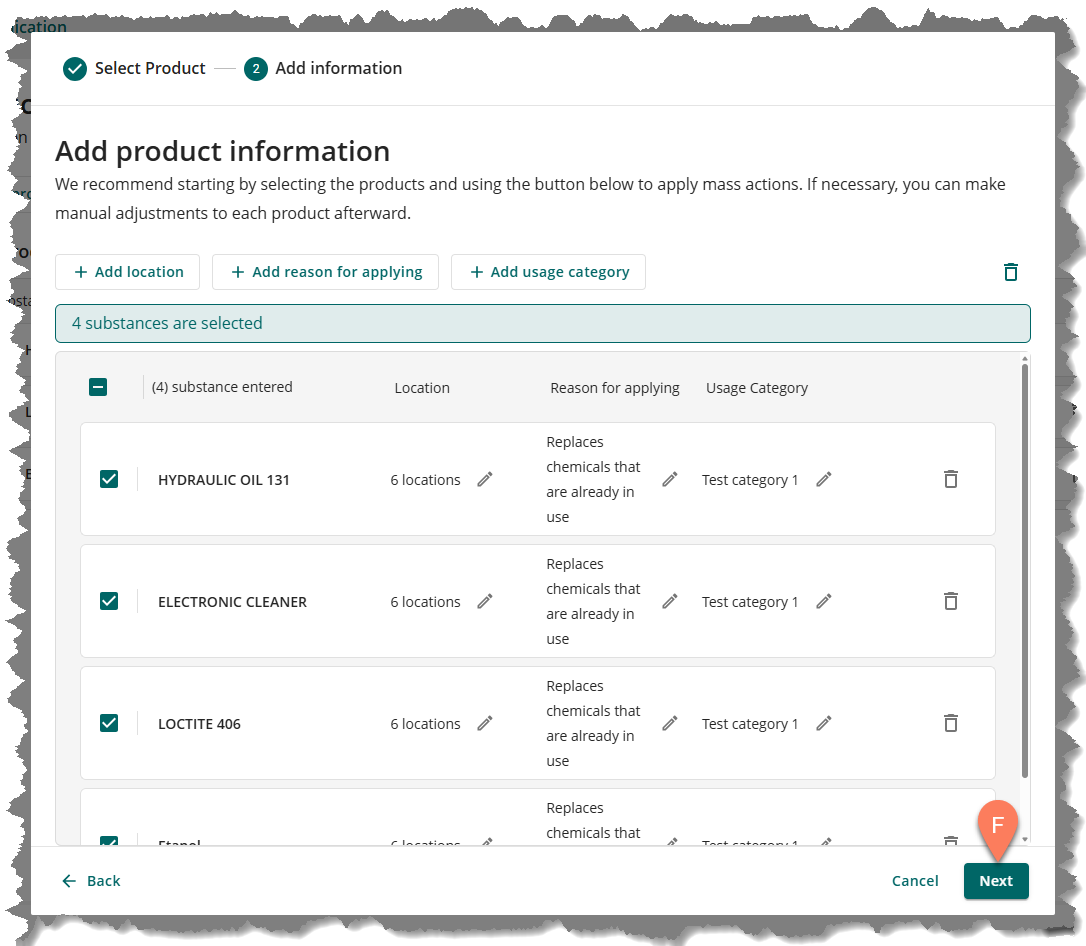
Once all information has been provided for all of the products, click the Next button.
Next steps
After you’ve added products to the application by manually uploading safety data sheets, you can add more products by repeating the process above. You can also add more products by adding from your Organization database or the Global SDS database.
If you’re done adding products, click the Save and next button at the bottom right corner of the screen to continue to the next step of the application process: Adding substitution products.