
Navigating the Substance Index
User Roles
- All users
Overview
In ChemCenter, the Substance Index contains all chemicals that are actively used in your organization. When you navigate to the Inventory tab found in the global header, it opens to the Substance Index by default.
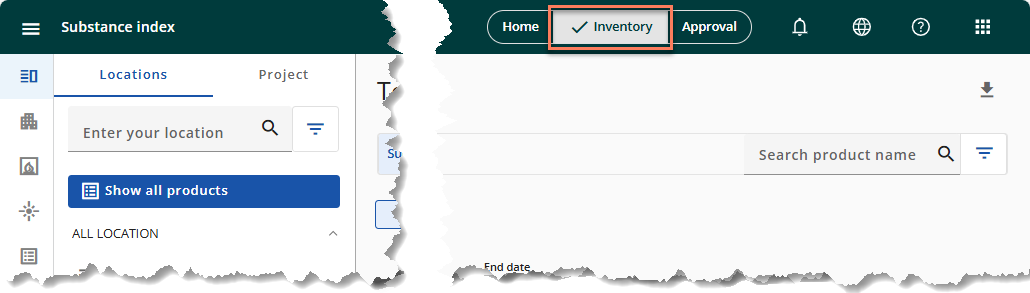
Navigation
Side navigation pane
Depending on your user role, the side navigation pane in the Substance Index may show only the Locations tab or also the Project tab.
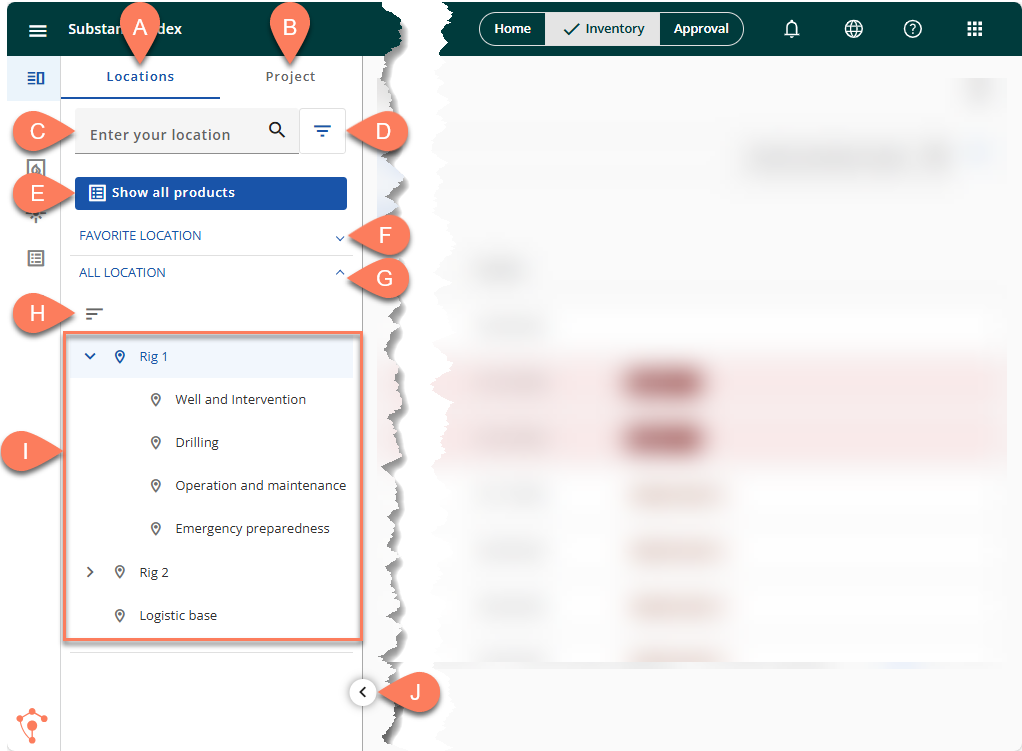
- A Locations tab – Shows all locations set up in your organization and all chemicals assigned to them. This tab is available for all user roles.
- B Project tab – Shows all projects in your organization and all chemicals assigned to them. This tab is available for select user roles only.
- C Search – Allows you to find a specific location or project by name depending on the tab you’re in.
- D Filter – Filters the Locations tab to Only show locations with work operations or Only show locations with substances.
- E Show all products – Show all actively used chemicals in the workspace on the right-hand side of the screen.
- F Favorite Locations/Projects – Show all locations/projects marked as favorite.
- G All Locations/Projects – Show all locations/projects in the side navigation pane.
- H Sort – Sort the locations from A to Z or vice versa.
- I Locations/Projects list – Displays all locations/projects set up in your organization. Locations may have sub-locations which may be shown or hidden by clicking the arrow on the left-side of the location name.
- J Show/Hide pane – Show or hide the side navigation pane. Collapsing the side navigation pane gives you a larger workspace.
Workspace
The structure and contents of the workspace vary depending on the tab selected in the side navigation pane.
Locations tab
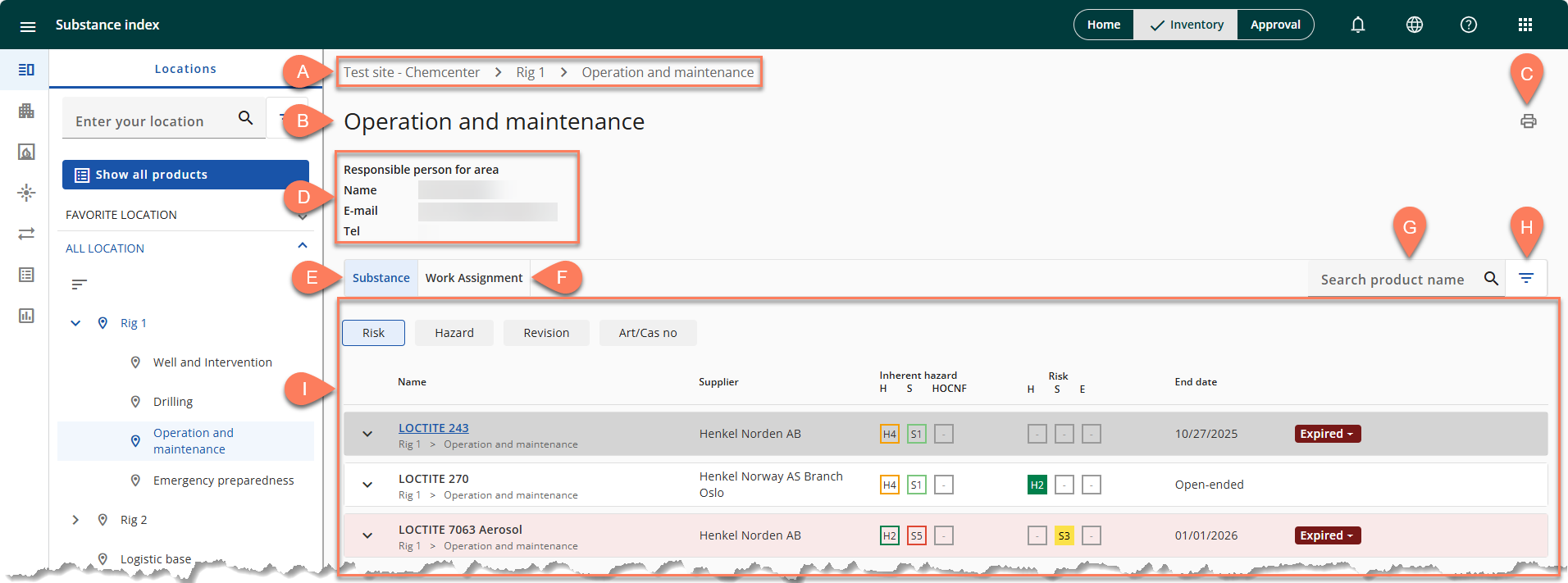
- A Location path – Displays the path to the current location. You can navigate to any location in the path by hovering over it then clicking.
- B Location name – Displays the name of the current location.
- C Print location label – Prints the location label for the current location.
- D Location manager details – Displays the details of the person responsible for the location.
- E Substance tab – Displays substances and their details in the current location.
- F Work Assignment tab – Displays work assignments and their details in the current location.
- G Search – Search chemicals or work assignments by name.
- H Filter – Apply a filter to the Substance tab.
- I Data display area – Displays chemicals or work assignments in a table.
Substance sub-tab
The Substance tab displays chemicals in the current location in a table. Only the basic details are displayed by default, but you also have the option to show more details of the chemical as well as to open the chemical on the screen to show all of its details. There are also controls to open related documents and register exposure.
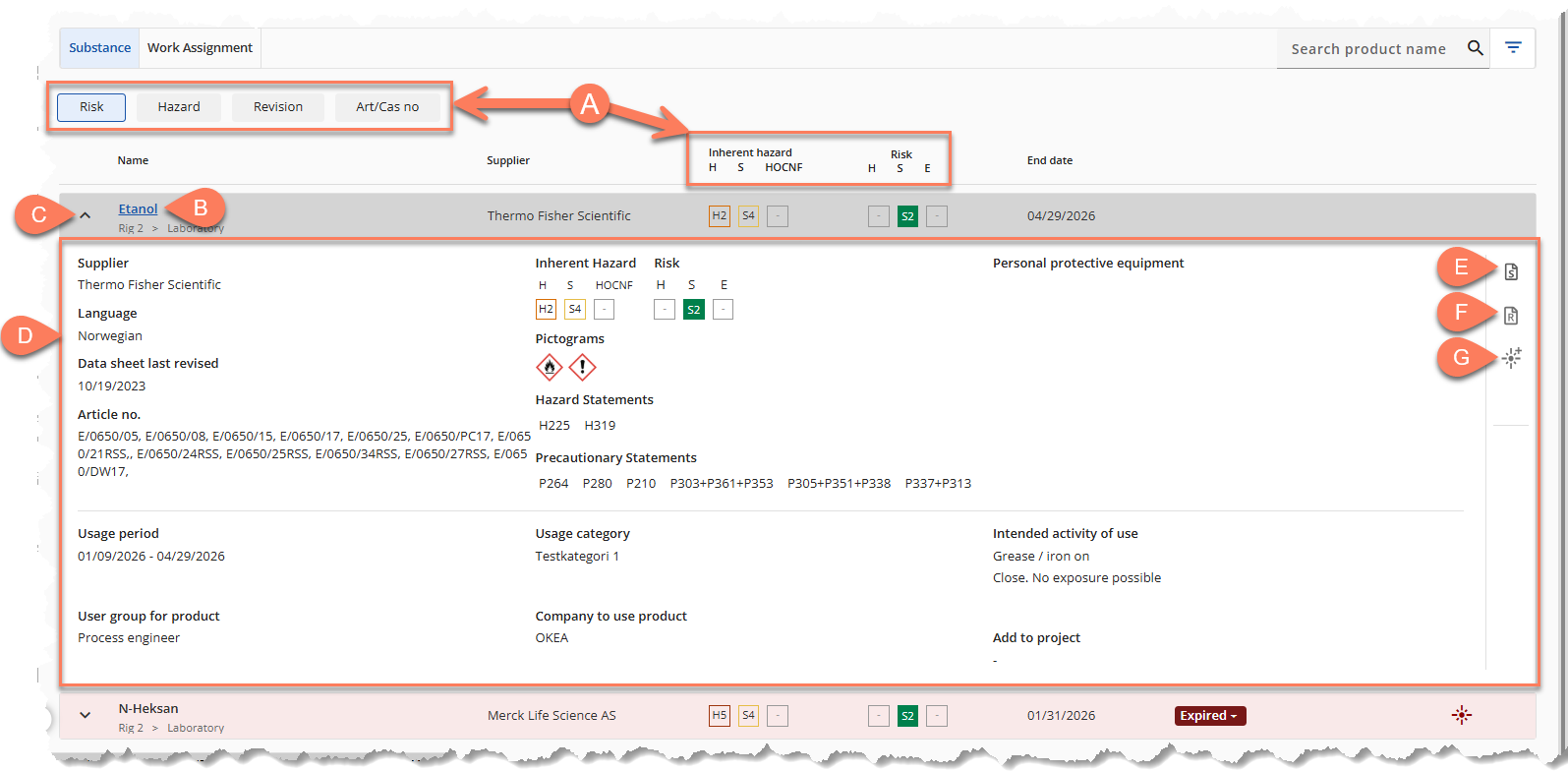
- A Column controls – Determines what information is displayed in the third and fourth columns on the table. This information may display details of the chemical’s Risk, Hazard, Revision, or Art/Cas no.
- B View full details – When you hover your cursor and click the chemical name, all details of the chemical will be displayed on the screen.
- C Show/hide more details – Show or hide the expanded details of the chemical.
- D Expanded details – Displays further details about the chemical and its usage.
- E Open safety data sheet – Open the chemical’s safety data sheet.
- F Open risk report – Open the chemical’s risk report.
- G Register exposure – Register your exposure to the chemical.