Printing Location Labels
User Roles
- Read-only
- Administrator
Overview
Location labels help guide personnel on site on how to properly handle chemicals in inventory. This article details the steps on how you can create and customize location labels in ChemCenter.
How to
Navigate to the location and print
Locations set up in your organization can be found in two areas within ChemCenter’s A Inventory tab: B Substance Index and C Location tab. Follow the steps below to navigate to either of these areas and print their location labels.
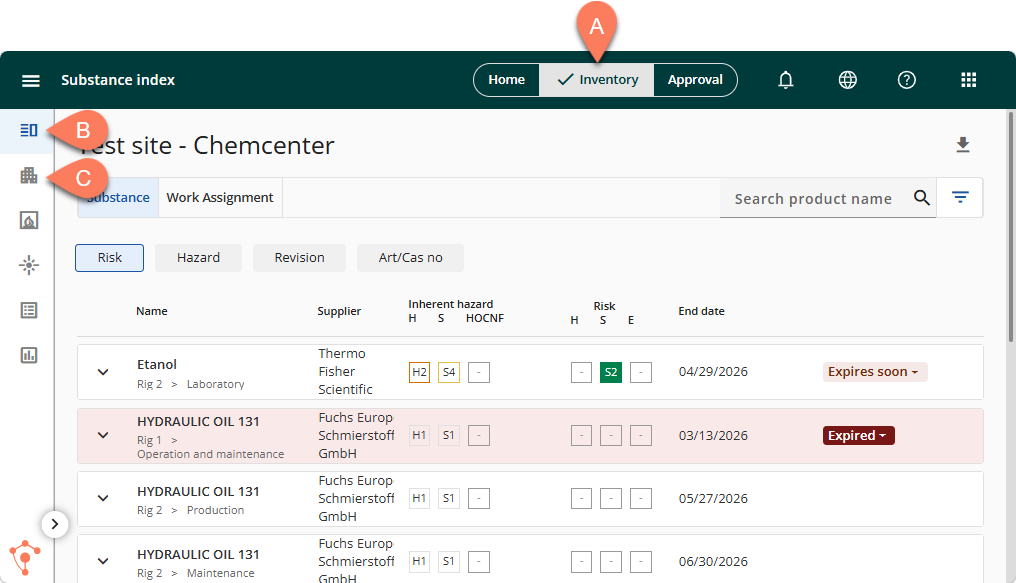
The Substance Index is accessible to all users. From here, you can print a location label by following the steps below:
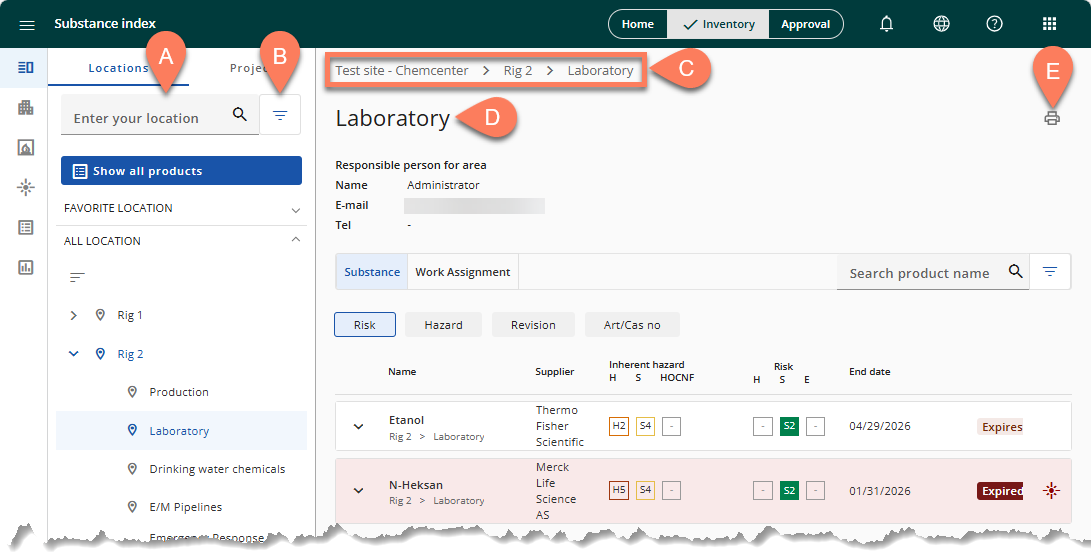
- In the side navigation pane, find the location from the list and click it.
- Use the A search or B filter function to quickly find the location you need.
- Once the C location path and D name displayed at the top reflect the correct location, click the E Print location label button.
Access to the Location tab must be specifically assigned to your user role. If it’s accessible to you, you can print the location label by following the steps below.
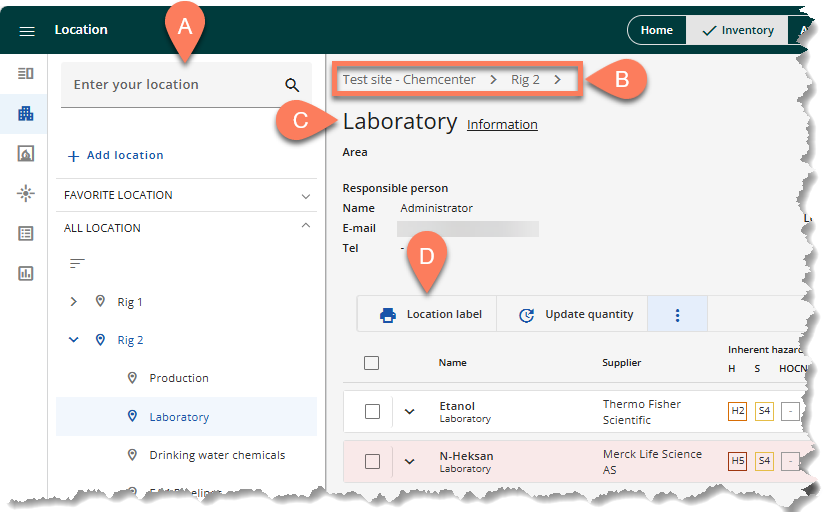
- From the side navigation pane, open the location where the product is assigned.
- Use the A search bar to quickly find the product.
- Once the B location path and C name displayed at the top reflect the correct location, click the D Print location label button.
Customize location label
When you click the Print location label button, it opens to a screen where you can customize the location label. The customization tools are displayed on the right while the resulting label is displayed at the center. Any changes you make are automatically reflected in the label displayed.
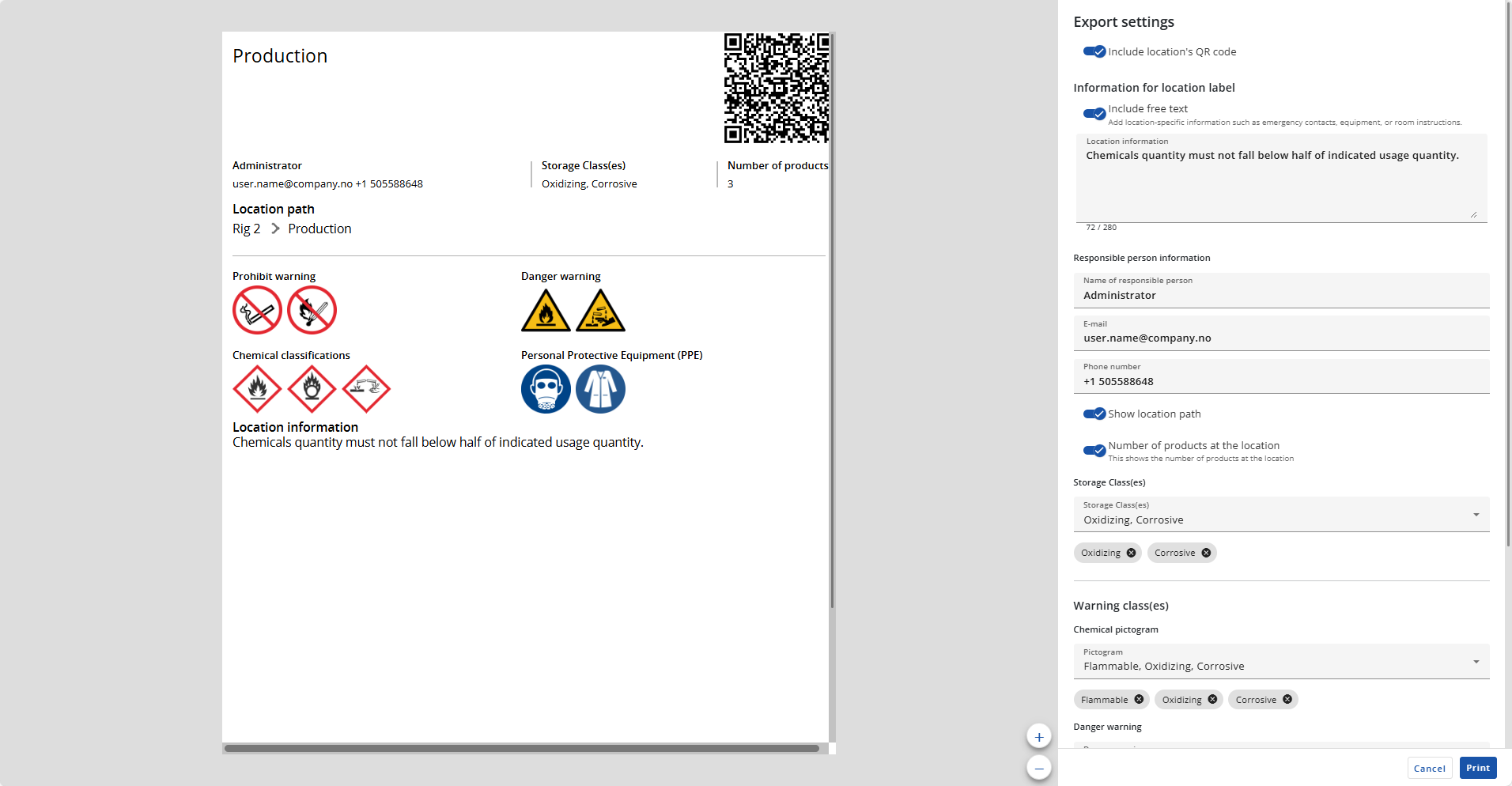
Location details
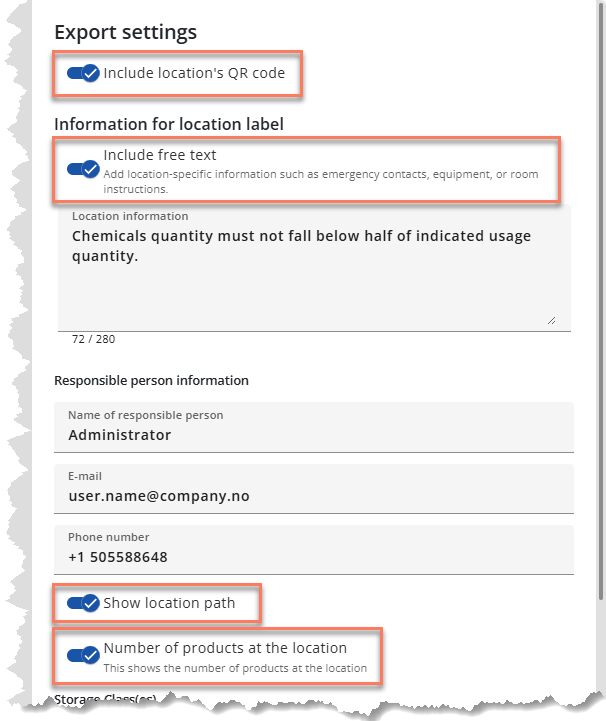
Location details are displayed in the location label by default. These details are as follows:
- Location’s QR code
- When scanned using a mobile device, you can quickly see the list of chemicals stored in that location.
- Location information
- Location path
- Number of products at the location
These details may be removed from the location label by disabling their corresponding toggle buttons.
Storage and warning classes
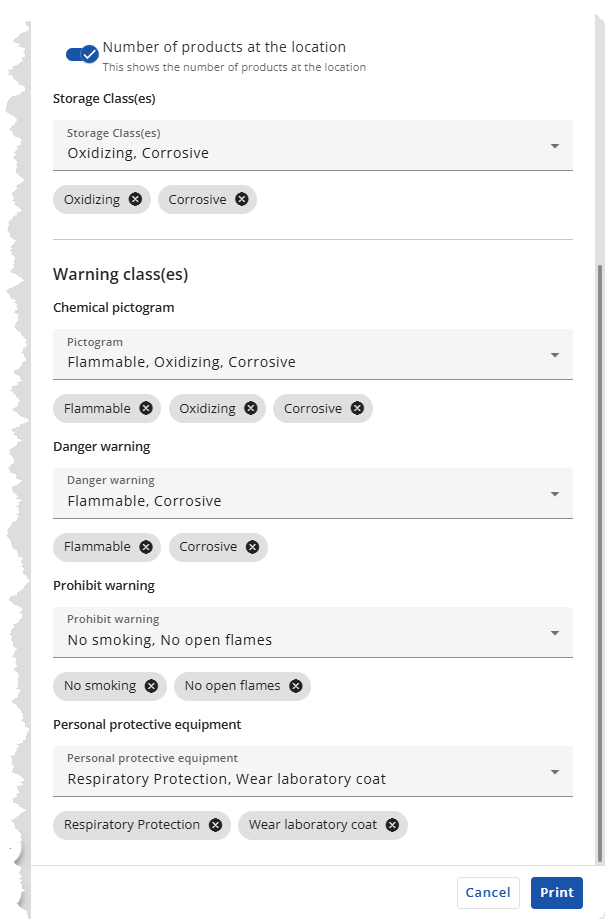
Storage classes and warning classes may be indicated in the location label. To add them in the location label, follow the steps below.
- Click the corresponding dropdown field.
- Select from the options.
- You can select multiple options for each dropdown field.
The selected options will be displayed below the dropdown field. To deselect any one, click the corresponding x button.