Viewing and Understanding Safety Data Sheets
Overview
Safety Data Sheets provide guidance on how chemicals should be properly and safely stored, used, and disposed. In ChemCenter, all chemicals have an associated Safety Data Sheet.
This article covers how to access a chemical’s SDS and navigate the SDS viewer.
How to
Open a chemical's safety data sheet
Each safety data sheet is associated with a chemical. To open the chemical’s safety data sheet, follow the steps below:
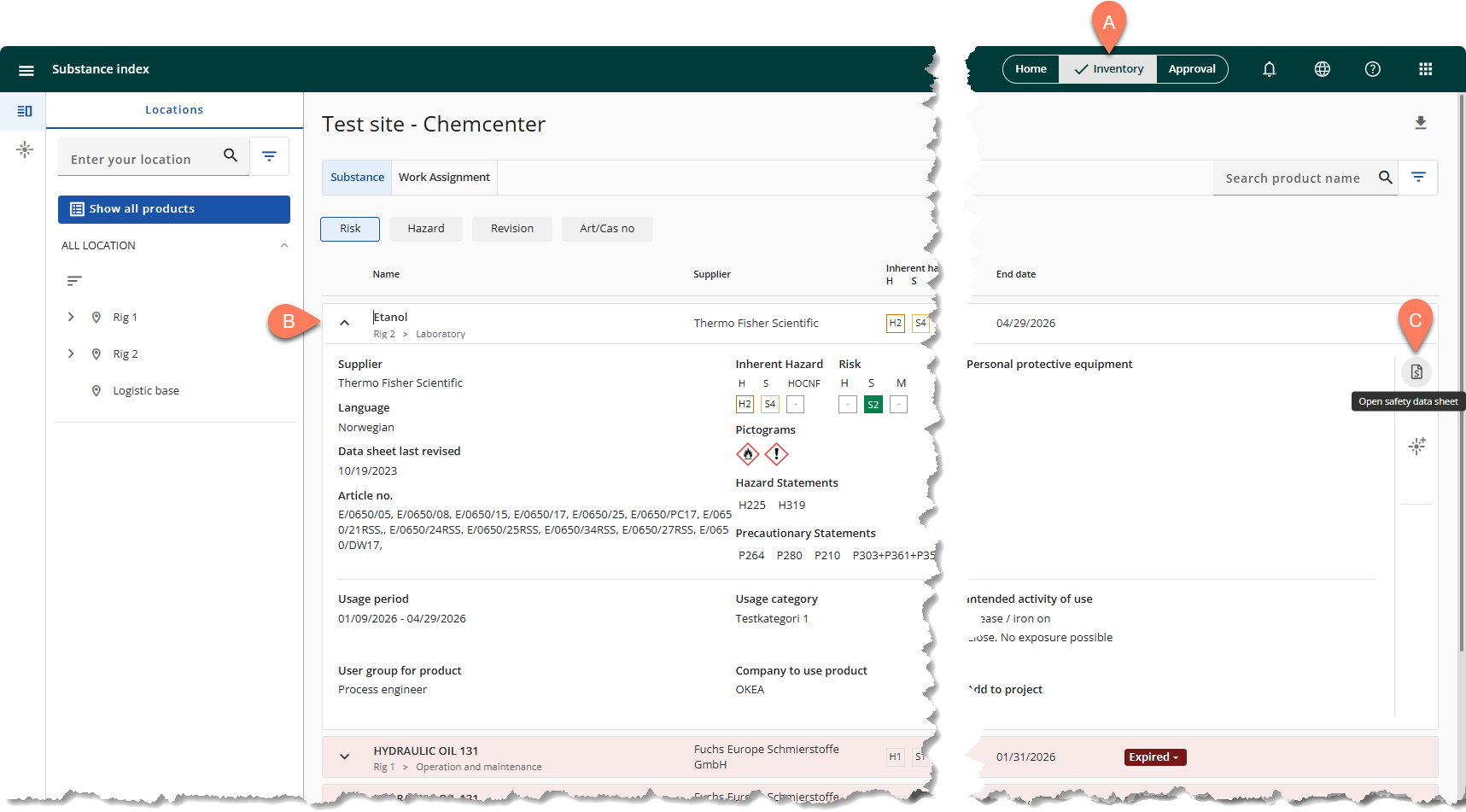
- Navigate to the A Inventory tab from the global header.
- This opens to the Substance Index by default.
- Find the chemical whose safety data sheet you’d like to review.
- Click the B chemical’s row to show its expanded details.
- Click the C Open safety data sheet button.
An SDS may be opened from anywhere in ChemCenter where you see the Open SDS  button such as chemical applications, risk assessments, or the Chemical Portal.
Navigate SDS viewer
The SDS viewer displays the chemical’s safety data sheet both as PDF and as extracted data. Below are the controls available in the SDS viewer so you can easily find the information you need.
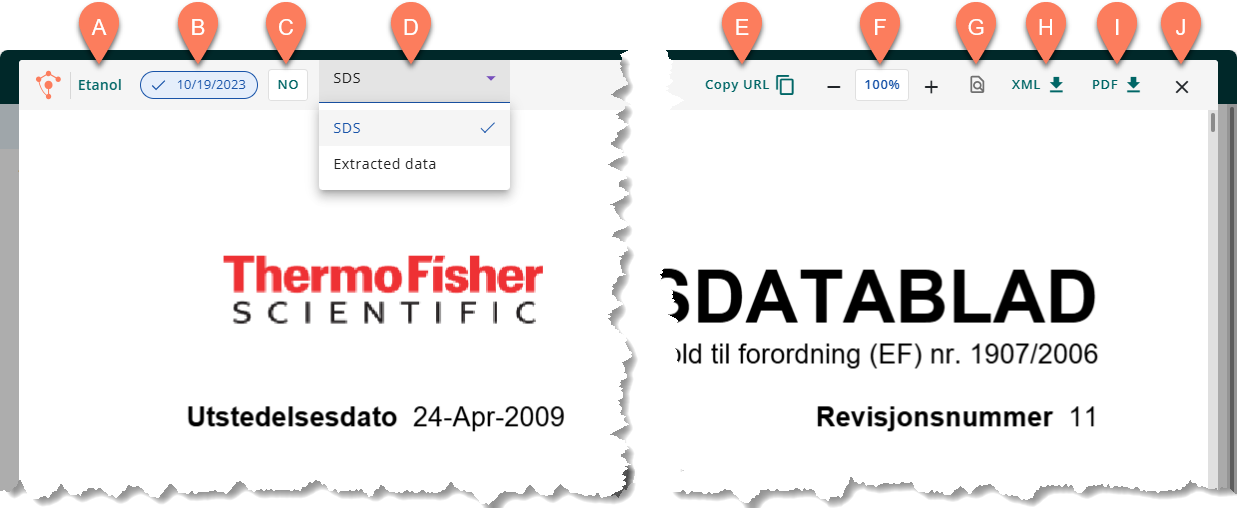
- A Chemical name – Displays the name of the chemical.
- B Revision – Displays the revision of the displayed safety data sheet.
- C Language – Displays the language of the displayed safety data sheet. If the SDS has multiple language versions, you may also click this button to change the language.
- D View selector – Select whether to display the safety data sheet or the data extracted from it organized into sections.
- E Copy URL – Adds the link to the safety data sheet to your clipboard so you can share it to other people.
- F Zoom – Zoom in and out of the page.
- G Find in page – Find a word or phrase in the displayed safety data sheet.
- H Export to XML – Export the safety data sheet into an XML document which is typically used for system integration purposes.
- I Export to PDF – Export the safety data sheet into a PDF document to print the SDS or share it with others.
- J Exit – Exit the SDS viewer.
Quickly find information
The SDS viewer in ChemCenter makes it easy to find information you need when you’re handling chemicals. Information is extracted from the SDS and organized into 16 sections which categorizes information based on practical use. Here’s how you can access the extracted information and easily find the relevant information.
- Open the safety data sheet in the SDS by following the steps in the Open a chemical’s safety data sheet section.
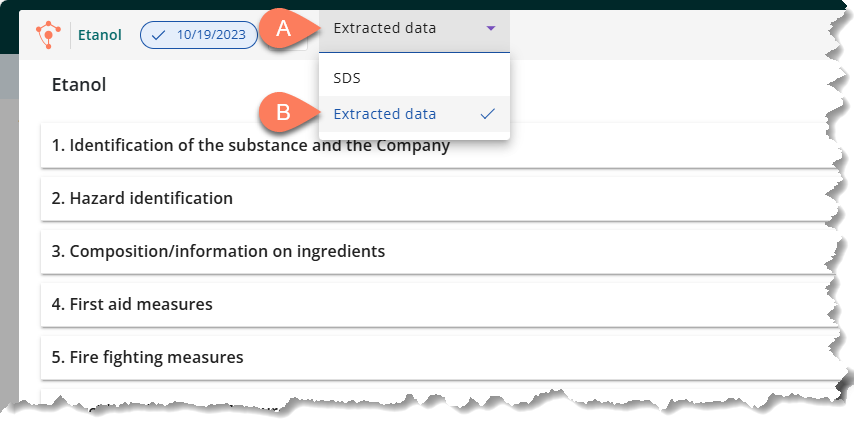
- Click the A view selector at the top and select B Extracted data.
- Click any section heading to expand it and show the relevant information.
- To expand all sections, click the Expand all button at the top right corner.
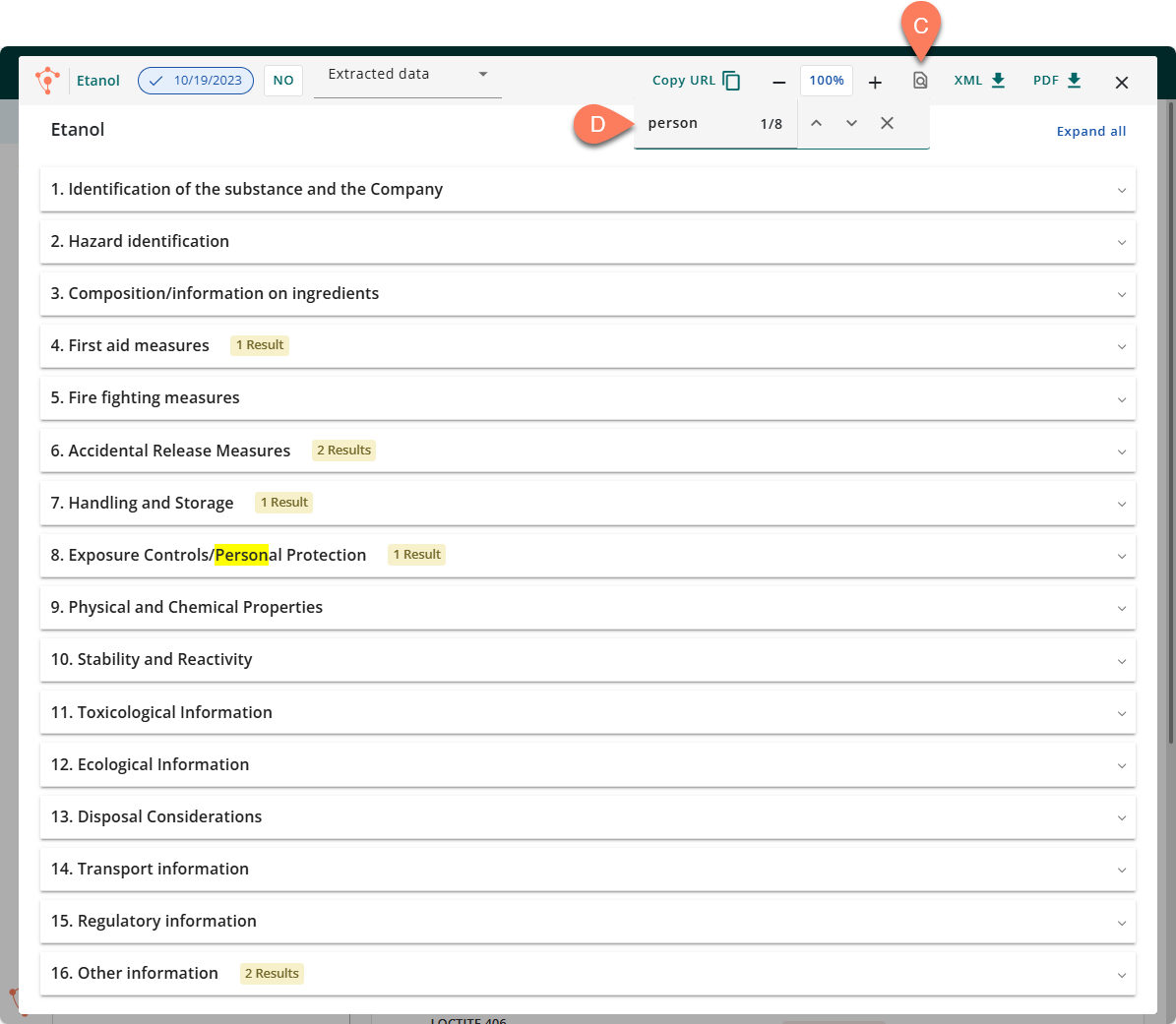
- If you’re looking for a specific word or phrase, click the C Find in page button.
- As you type in what you’re looking for in the D search box, the number of matches within each section are displayed on the section heading.