Knowledge Base
Exporting and Printing Reports
Overview
The process of creating and customizing the different reports listed in the Reports Overview article is similar. It follows the general steps outlined in this article.
How to
Access the report
To access the report type you’d like to export, follow the steps below.
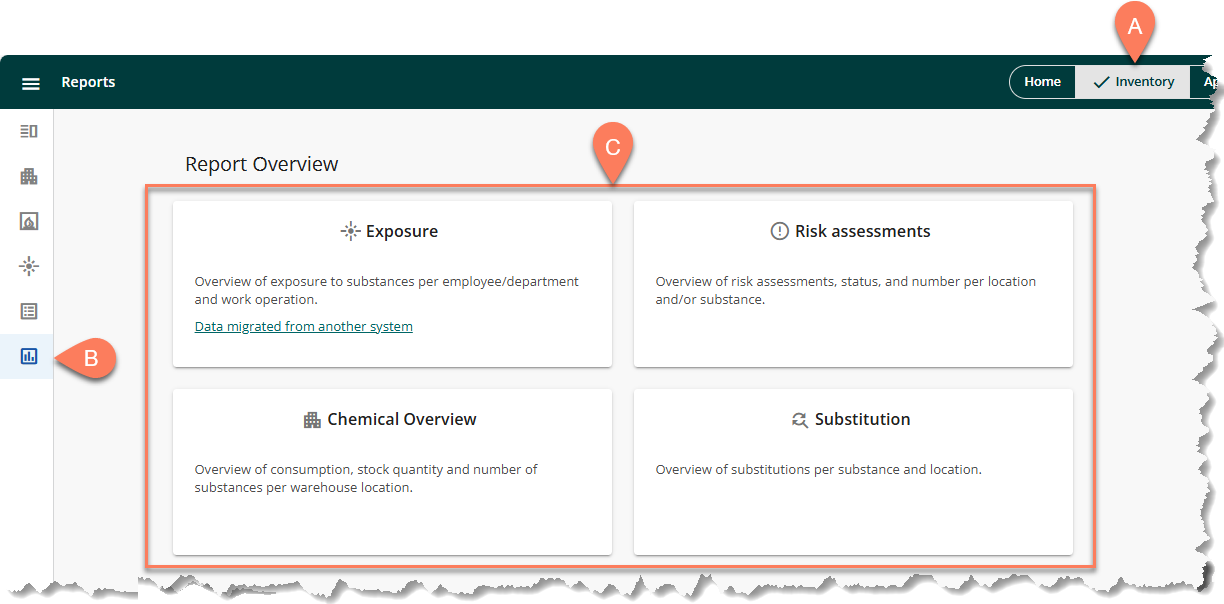
- Navigate to the A Inventory tab from the global header.
- Navigate to B Reports from the side navigation pane.
- Select the type of C report you’d like to export.
Customize the report for export
Each report in ChemCenter is customizable using controls such as filters, and date range and column selectors.
- Filter and Date range selector – Determines which records appear in the Exposure, Risk assessment, and Substitution reports. Filter options differ based on the type of report.
- Column selector – Determines what type of information gets displayed in the Risk assesmsent and Susbtitution reports.
Export the report
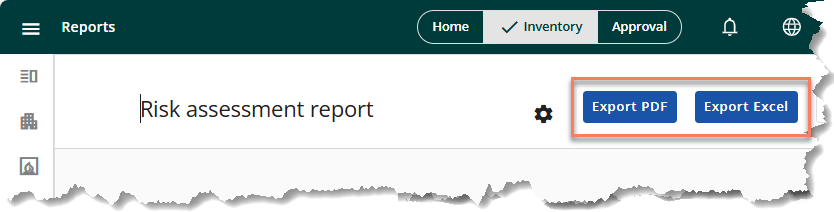
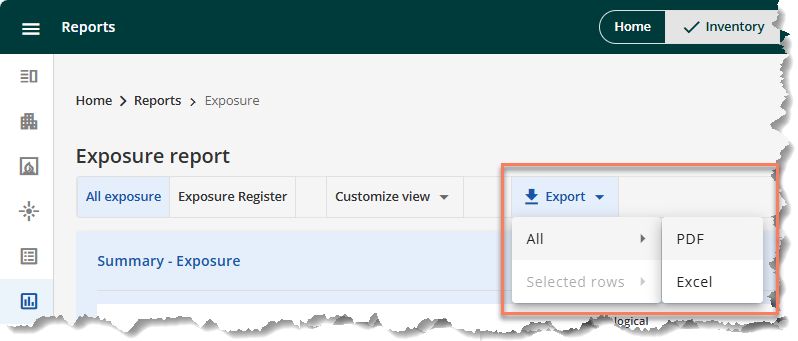
To export any report in ChemCenter, click the Export button at the top of each report. This may be a dropdown button where you can select the type of file you want to export the report into such as in the Exposure report.
The Export PDF and Export Excel buttons may also be separate from one another such as in the Risk assessment report.