General Navigation
Overview
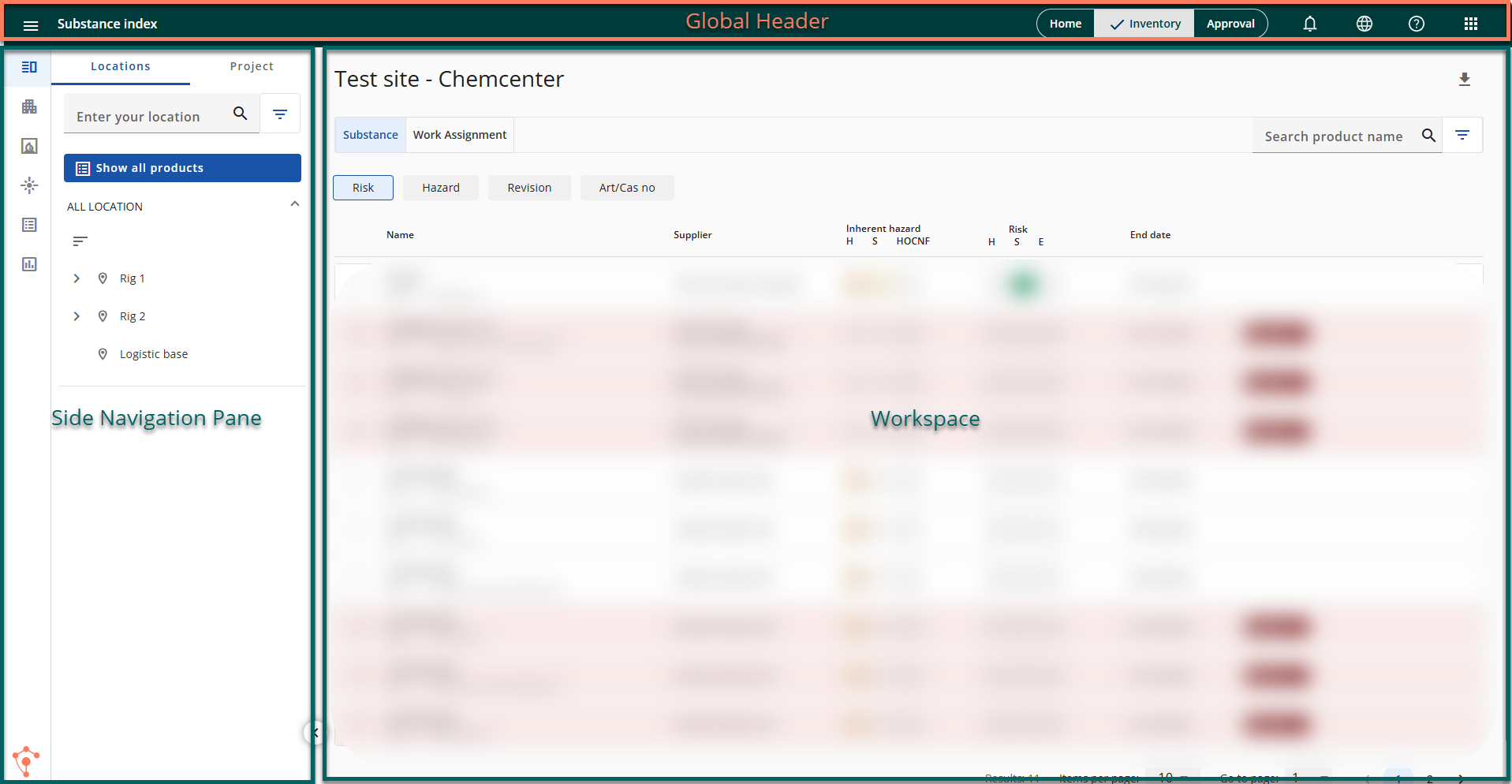
ChemCenter is designed for easy navigation and use. The screen is generally divided into three: the Global Header, Side Navigation Pane, and the Workspace. The side navigation pane and workspace change depending on the major tab selected in the global header: Home, Inventory, and Approval. This gives you plenty of space to do your work while still having the option to start a different workflow at any time.
Navigation Areas
There are two main areas used for navigation in ChemCenter: the global header and the side navigation pane.
Global Header
In the global header, you’ll find navigation controls for the following:
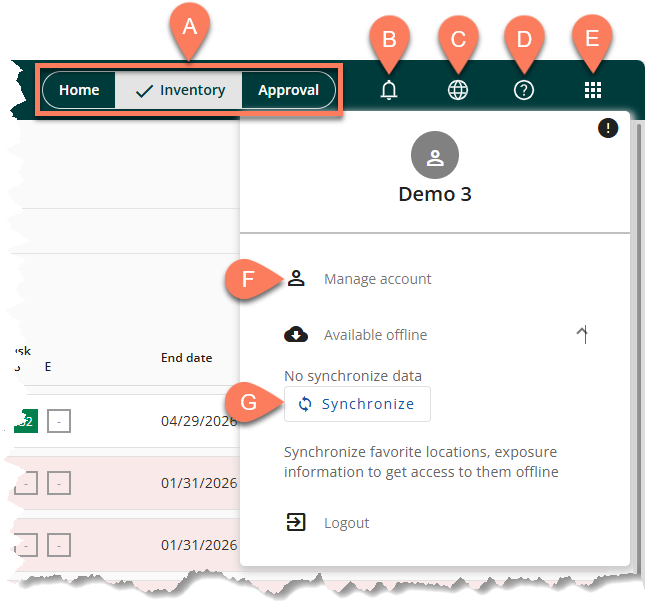
- A Major tabs – Allows you to switch to different areas to access different functions and features of ChemCenter. The major tabs are Home, Inventory, and Approval.
- B Notifications – Access your notifications in ChemCenter.
- C Language setting – Select either English (EN) or Norwegian (NO) as the system language within ChemCenter.
- D Contact support – Visit the Workplace Safety Customer Portal where you can access contact information for support, and get the latest news and upcoming webinars.
- E Manage profile – View the account logged in and access the Logout button. If you’re in the Inventory tab, you can also F Manage account so you can register exposure, and G Synchronize data in favoritized locations for offline use.
Side Navigation Pane
The contents and controls of the side navigation pane adapt to the major tab you selected on the global header.
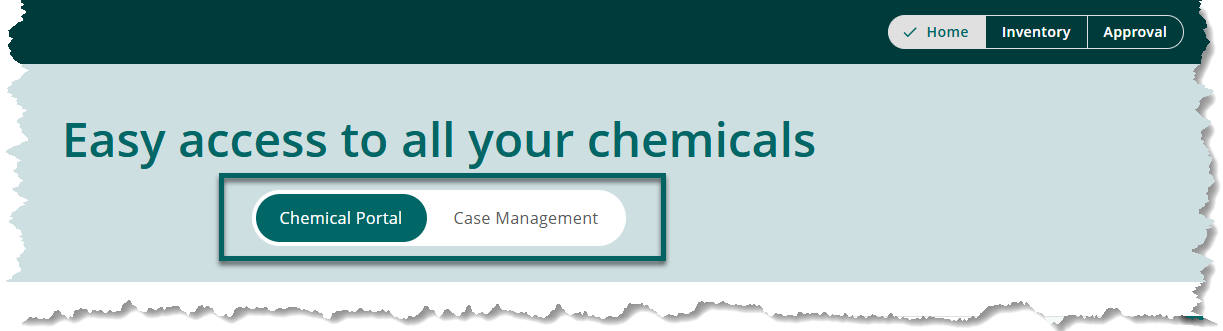
- Home – There’s no side navigation pane in the Home tab. Instead, the Chemical Portal and Case Management sub-tabs at the top are used to switch between the chemicals overview in the system and your activities summary, respectively.
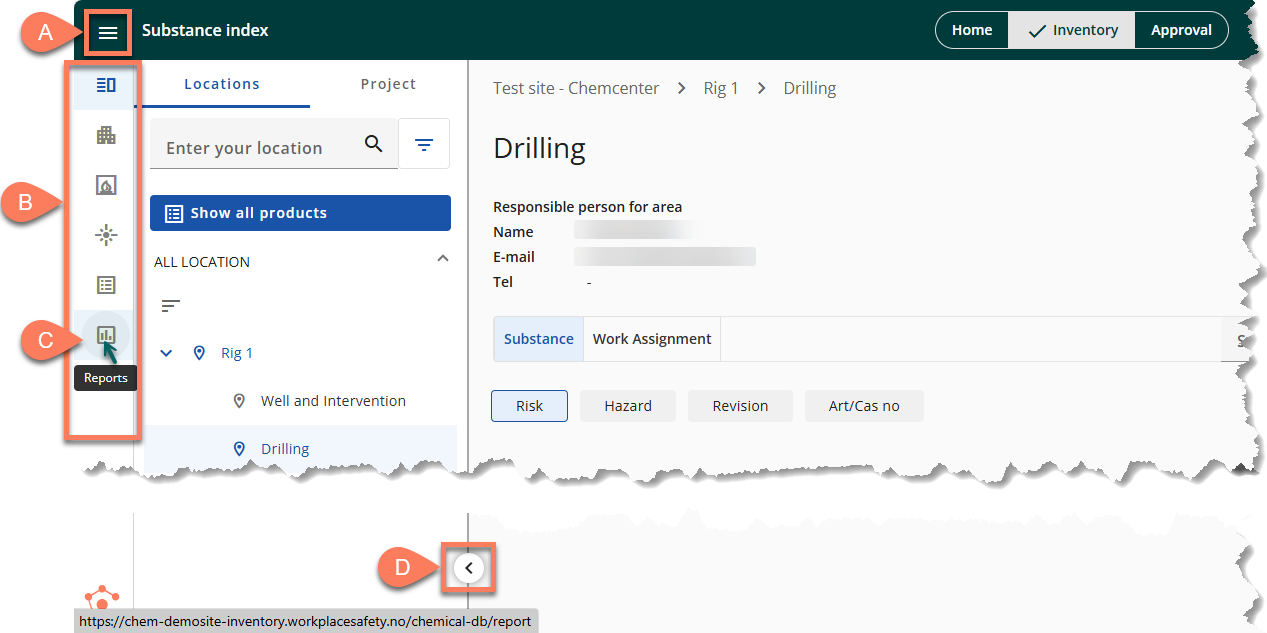
- Inventory – In the Inventory tab, the side navigation pane is used to switch between the Substance Index, Location, Substance, Exposures, Tasks, and Reports tabs.
-
- These tabs appear as B icons, hovering your mouse cursor over each one, such as C, will display the name of the tab.
- To expand the entire side navigation pane, click the A hamburger icon on the left-hand side of the global header.
- The Substance Index and Location tabs, by default, are expanded to show further navigation controls. The D collapse button at the bottom lets you hide this expanded navigation controls so you can have a wider workspace.
Some of these tabs may not be available to you. Their availability varies depending on the role assigned to you.
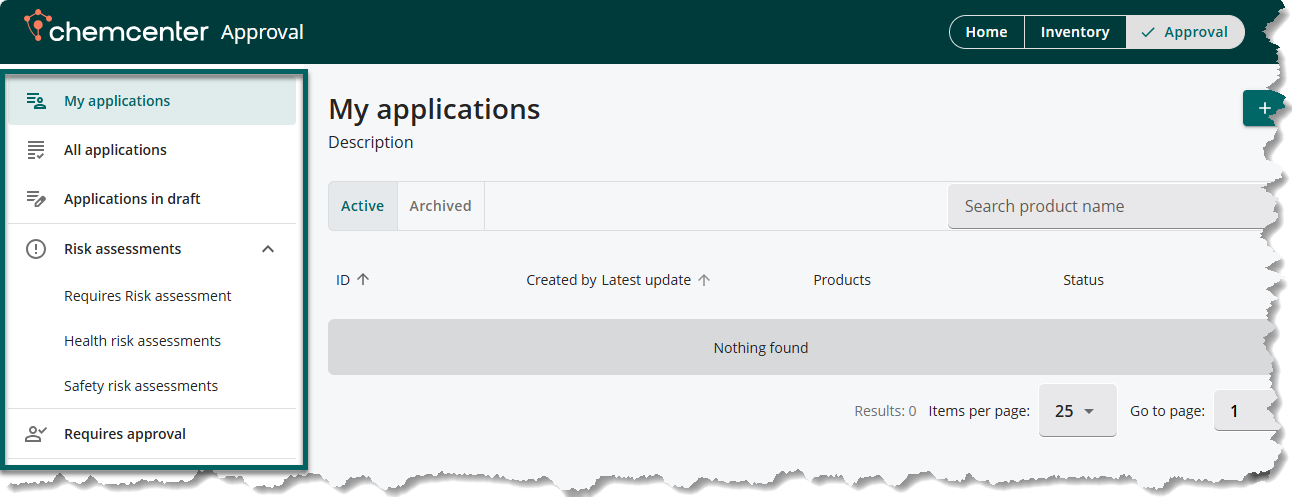
- Approval – All applications you have access to can be found in the Approval tab. In the side navigation pane, you can access My applications, All applications, Applications in draft, Risk assessments, and Requires approval.