
Access and Login
Overview
Each organization is provisioned with a custom ChemCenter web address. ChemCenter supports Single Sign-On (SSO), allowing users to log in using their existing organizational credentials. If required, ChemCenter-specific credentials may also be provided to ensure access in cases where SSO is unavailable.
This article covers two examples of available login options. Refer to the relevant section for steps applicable to your organization’s setup.
How to
There are three ways you can log in to ChemCenter: Sign in with Microsoft, Sign in with Okta, or Sign in with username and password.
Sign in with Microsoft
To access your organization’s ChemCenter and sign in using your Microsoft account, follow the steps below.
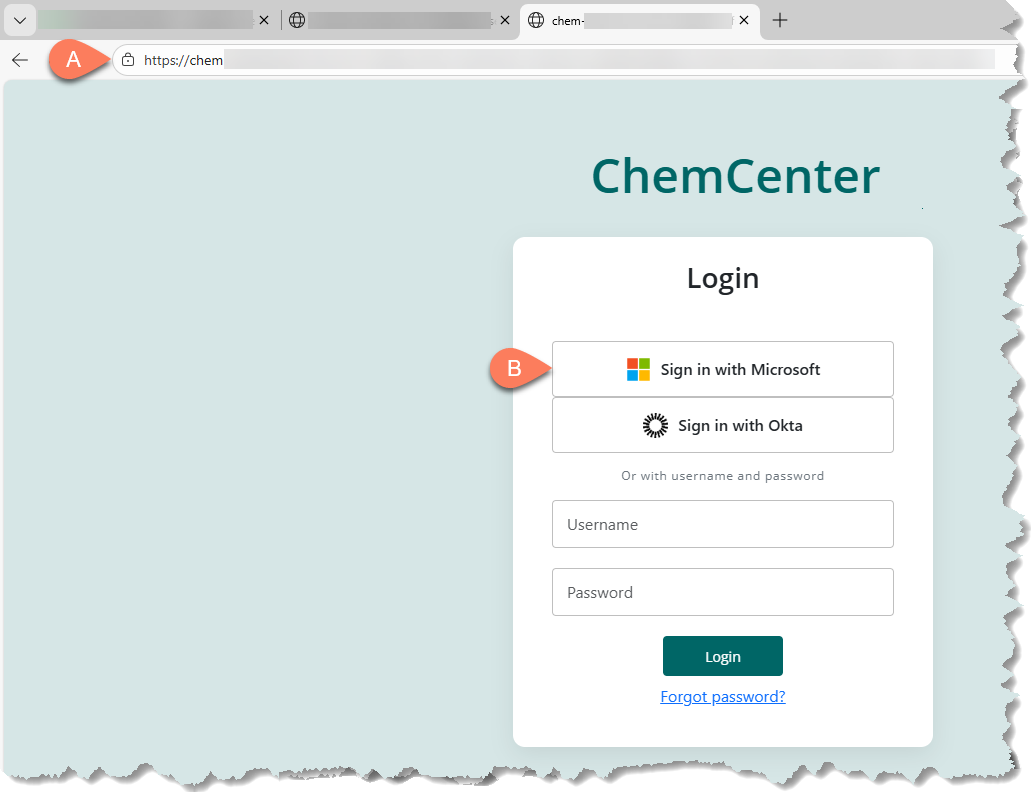
- Enter your organization’s ChemCenter URL in your browser’s A address bar.
- On the log in page, click the B Sign in with Microsoft button.
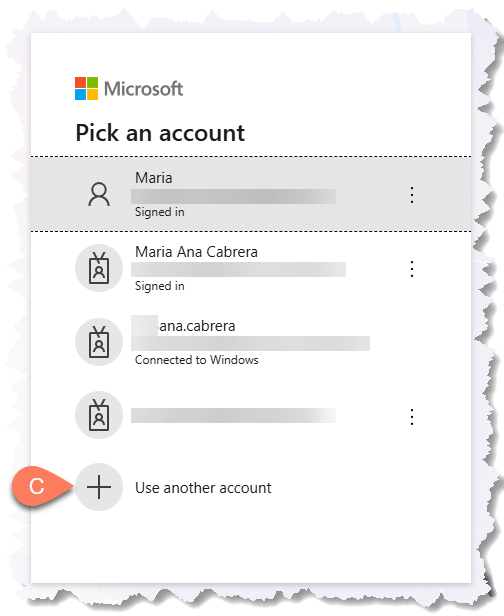
- Select your organization account with access to ChemCenter from the list.
- If your account is not logged in yet, click the C Use another account button and follow the on-screen prompts.
- Depending on your security settings, there may be an additional step for multi-factor authentication. Follow the on-screen prompts.
Sign in with Okta
Okta is a cloud-based identity and access management (IAM) platform often used for single sign-on (SSO) access. If this is used by your organization, you may also use it to log in to ChemCenter. Follow the steps below to access your organization’s ChemCenter and sign in with Okta.
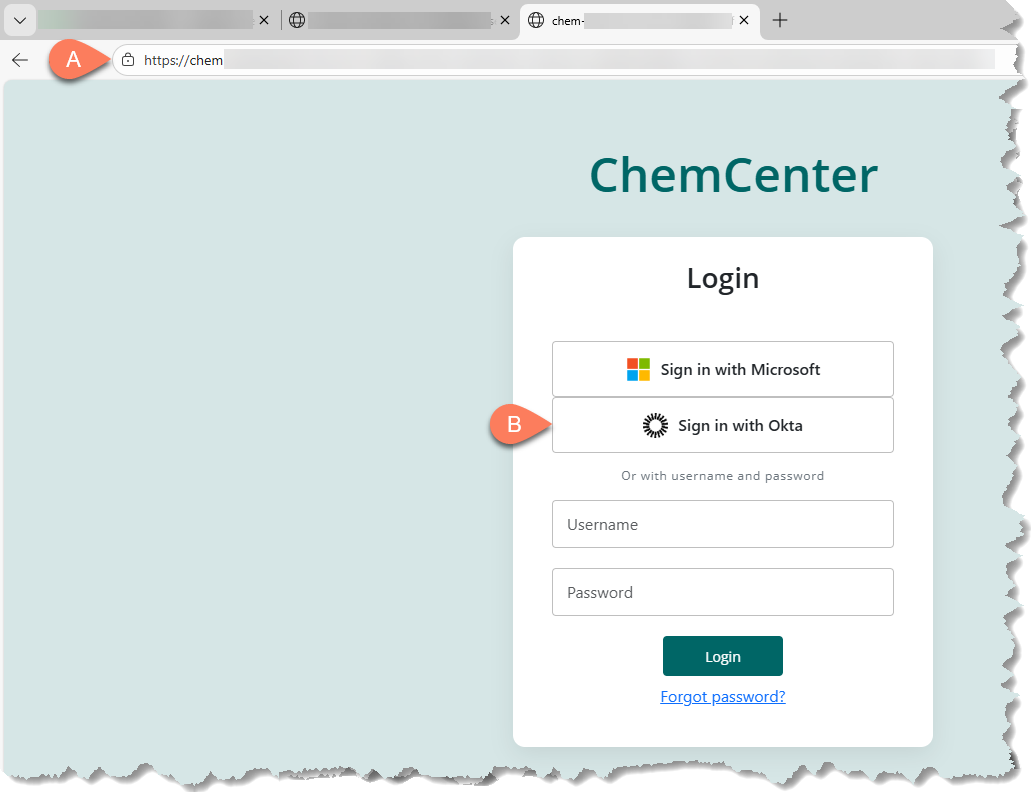
- Enter your organization’s ChemCenter URL in your browser’s A address bar.
- On the log in page, click the B Sign in with Okta button.
- Have your SSO device ready.
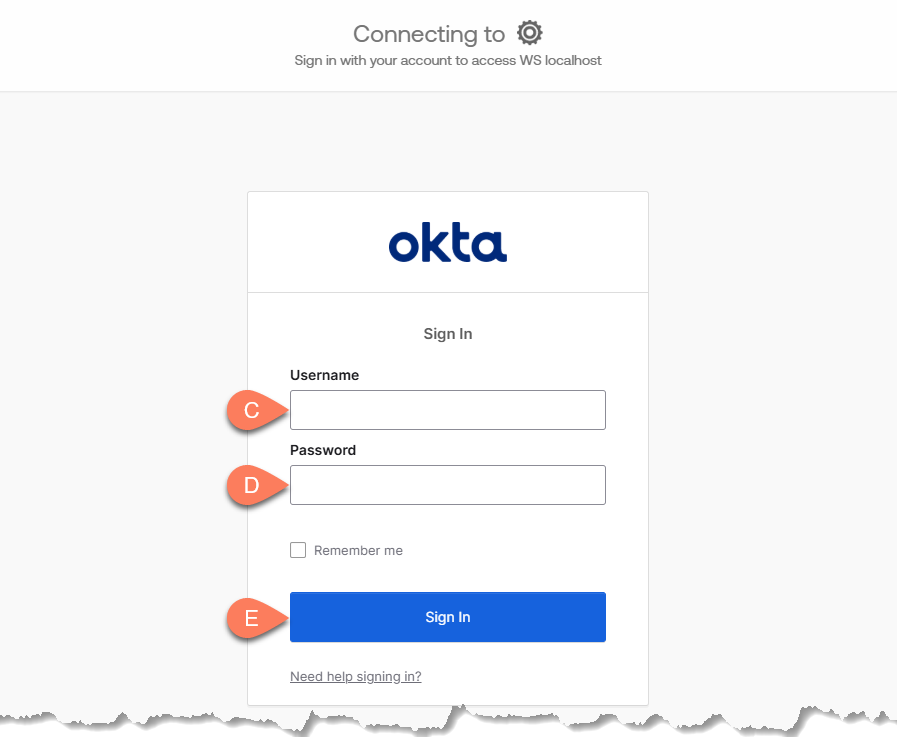
- On the Okta sign in page, enter your C Username and D Password.
- Click the E Sign In button.
- Follow the on-screen prompts.
Log in with username and password
Credentials specific for ChemCenter may also be provided for your organization as a redundancy measure in case there are issues with either Microsoft or Okta, whichever your organization uses as an identity provider. In this case, follow the steps below.
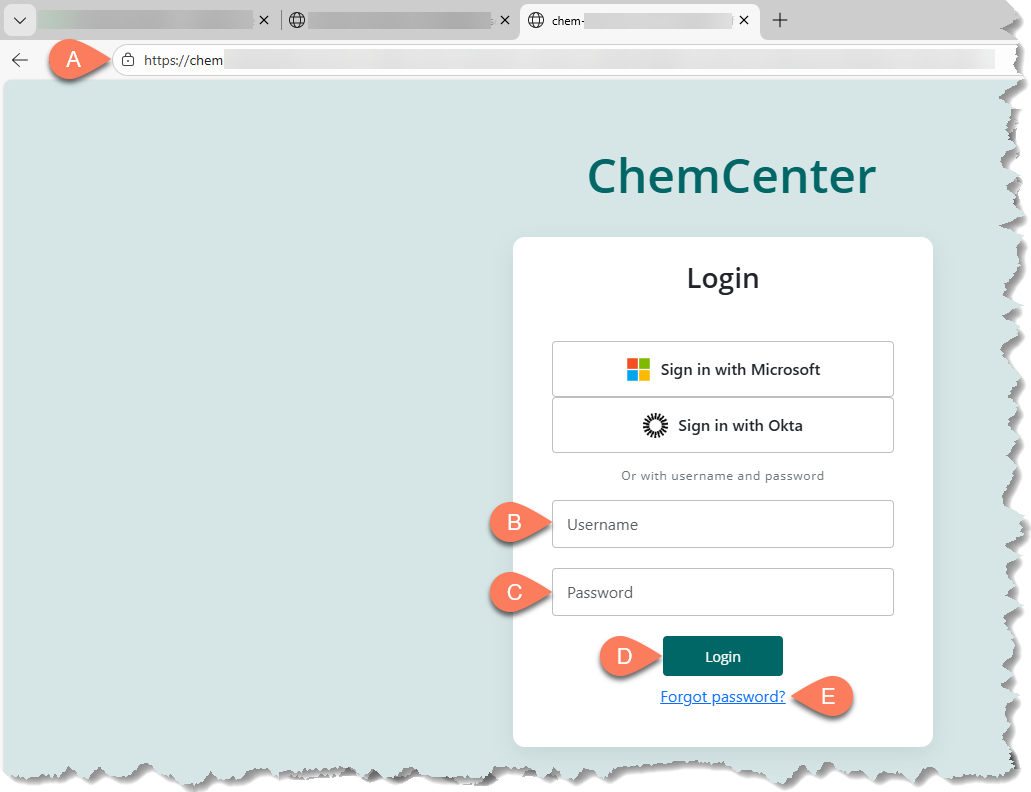
- Enter your organization’s ChemCenter URL in your browser’s A address bar.
- On the log in page, enter your B Username and C Password.
- If you can’t remember your password, click the E Forgot password? link to receive instructions to reset your password in the email associated with your account.
- Click the D Login button.