
Archiving chemicals
Overview
Your Organization database contains all chemicals added from the Global SDS database as well as those manually uploaded from applications. Some of these chemicals may already be expired or retired from use. In this case, archiving chemicals help for the following reasons:
- Archiving chemicals that are no longer in use keeps your organization’s active inventory accurate and up to date.
- The history and documentation of the chemical are preserved, ensuring your compliance with record-keeping requirements.
- Chemicals with expired or revoked approvals must be archived to remove it from your organization’s active inventory.
This article covers the step-by-step procedure of archiving chemicals in your Organization database.
How to
Access Organization database
To access your Organization database, follow the steps below.
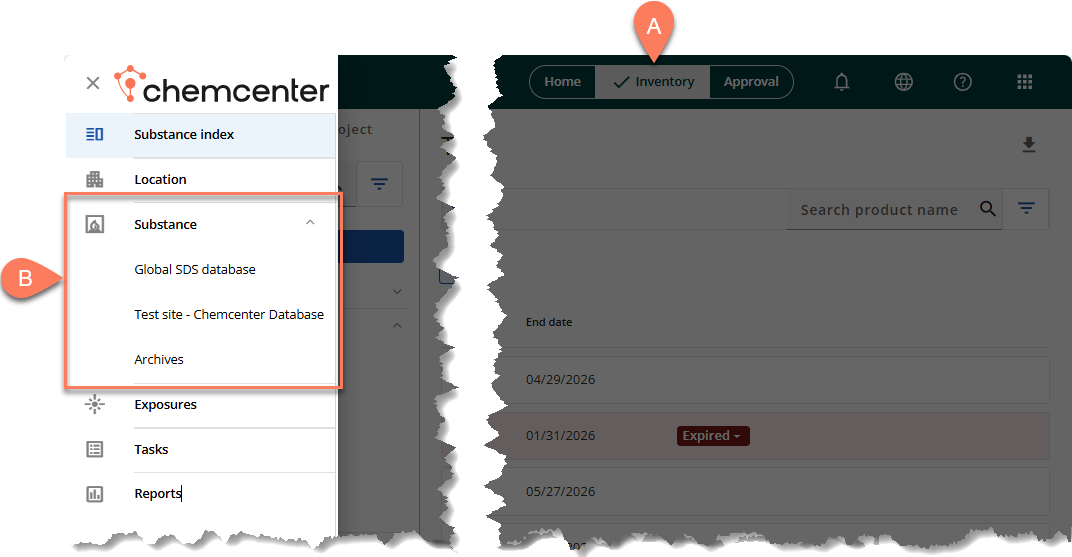
- Navigate to the A Inventory tab from the global header.
- Click
 Substance on the side navigation panel.
- The side navigation panel will expand.
- In the side navigation pane, click the name of your ChemCenter database under the B Substance dropdown.
Archive a chemical in your Organization database
To archive a chemical in your Organization database, follow the steps below.
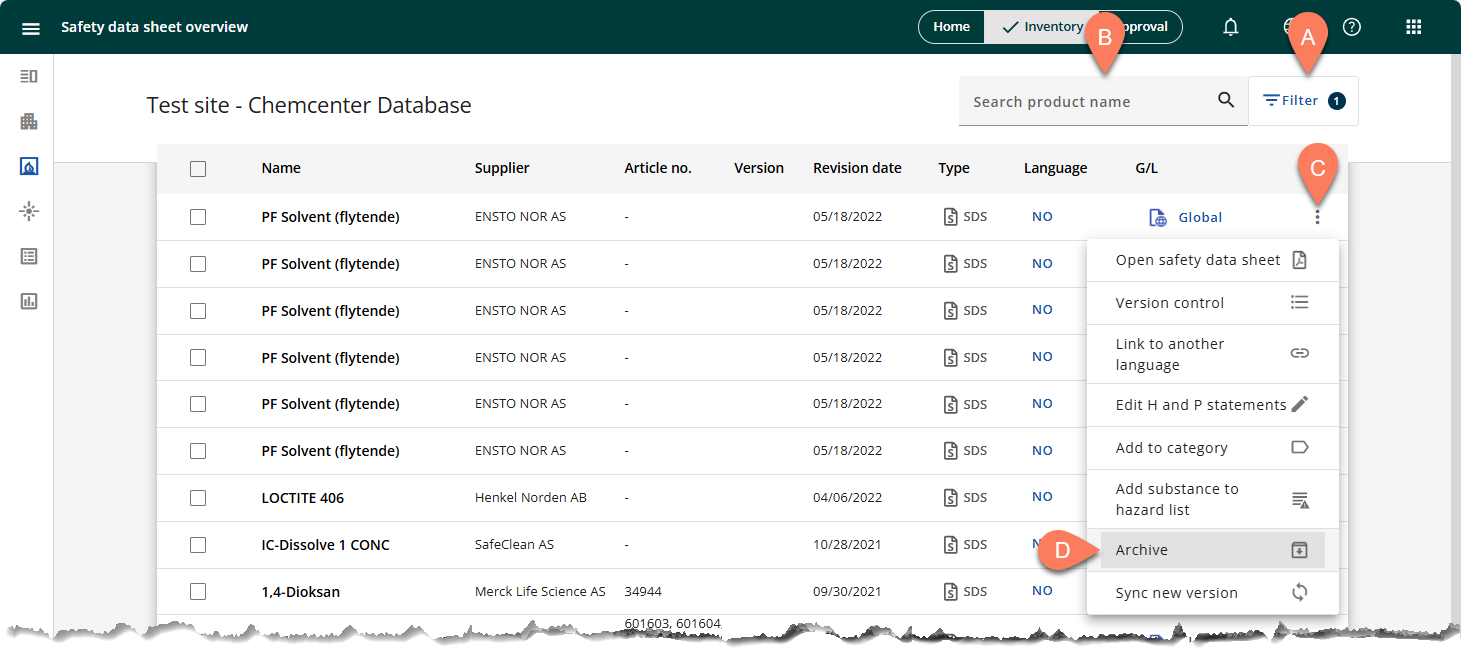
- Quickly locate the chemical you’d like to archive by A filtering the table or using the B search box.
- Click the chemical’s C vertical ellipsis button.
- From the options, click D Archive.
Archive multiple chemicals
Multiple chemicals may be archived at the same time. Follow the steps below.
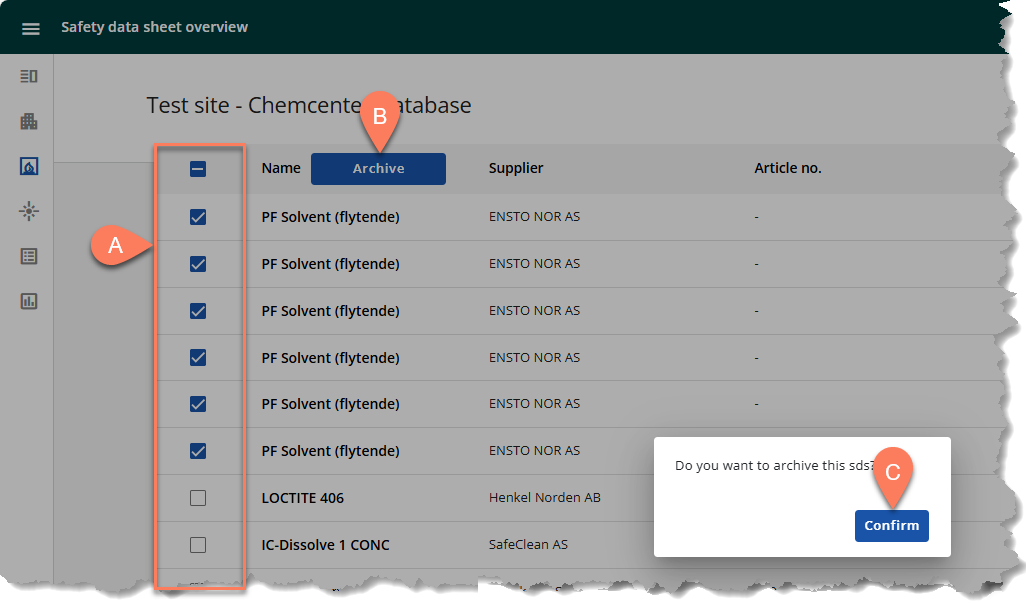
- Select the A checkboxes of the chemicals you’d like to archive.
- Click the B Archive button at the top.
- In the pop-up dialog box, click the C Confirm button.
Archived chemicals
When a chemical is archived, it’s moved from your Substance Index into the Archives database. Its history and all documents associated with it are maintained. To access archived chemicals, follow the steps below:
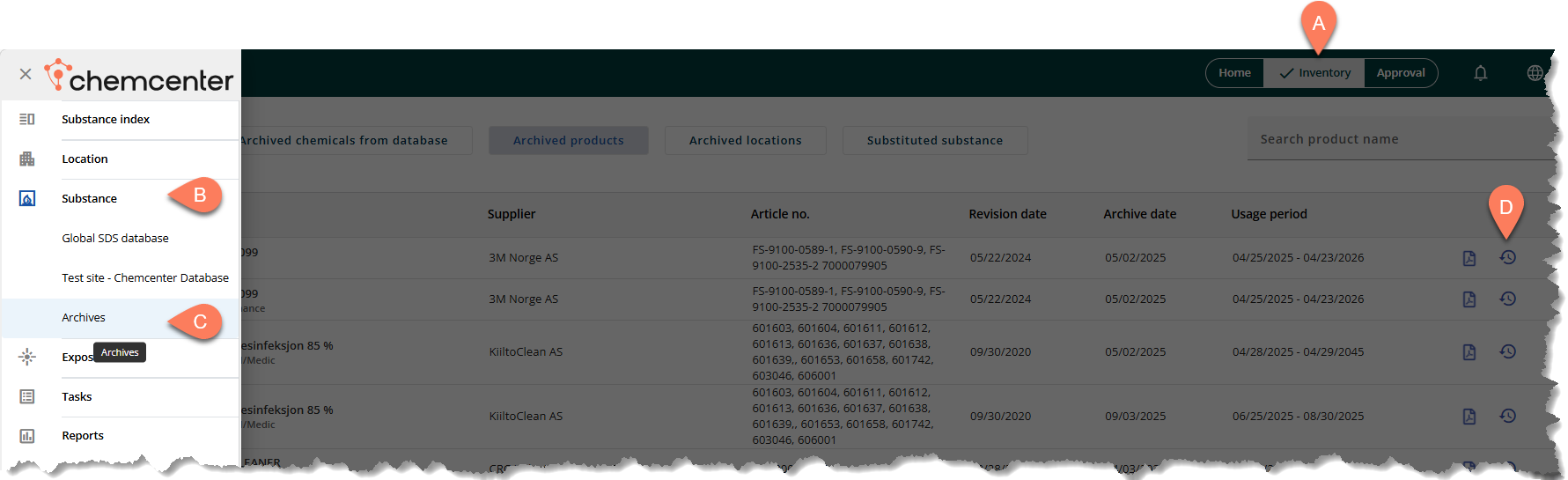
- Navigate to the A Inventory tab from the header.
- Click B Substance from the side navigation then select C Archives.
- Select the archive you’d like to view using the buttons at the top.
- The contents of the table will adjust depending on the selected button.
- Click the chemical name to view its full details and history.
- To restore the chemical, click the D Restore button.