
Basic Controls
Overview
Standard steps for editing, viewing, and managing data are used through ChemCenter. The user interface is simple and easy to use.
This article covers these steps so you can easily and efficiently use ChemCenter for your organization’s processes.
How to
Edit fields
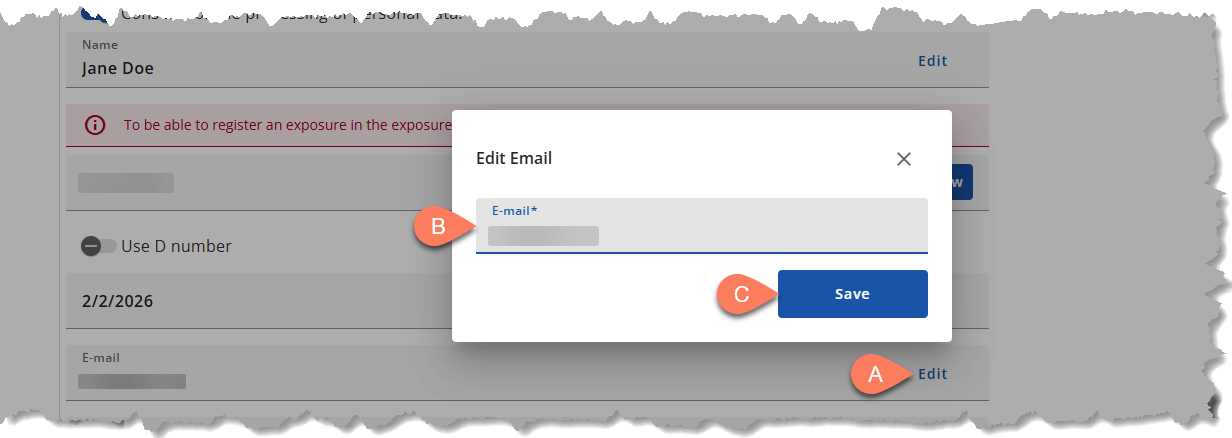
Strict data controls are implemented in ChemCenter due to the level of sensitivity required. When entering new data or updating existing ones, you often can’t directly edit field values on the form. To enter data, follow the steps below.
- Click the A Edit button on the field.
- In some fields, you’ll find the Add New button instead.
- In the pop-up, enter the value in the B field.
- Click the C Save button.
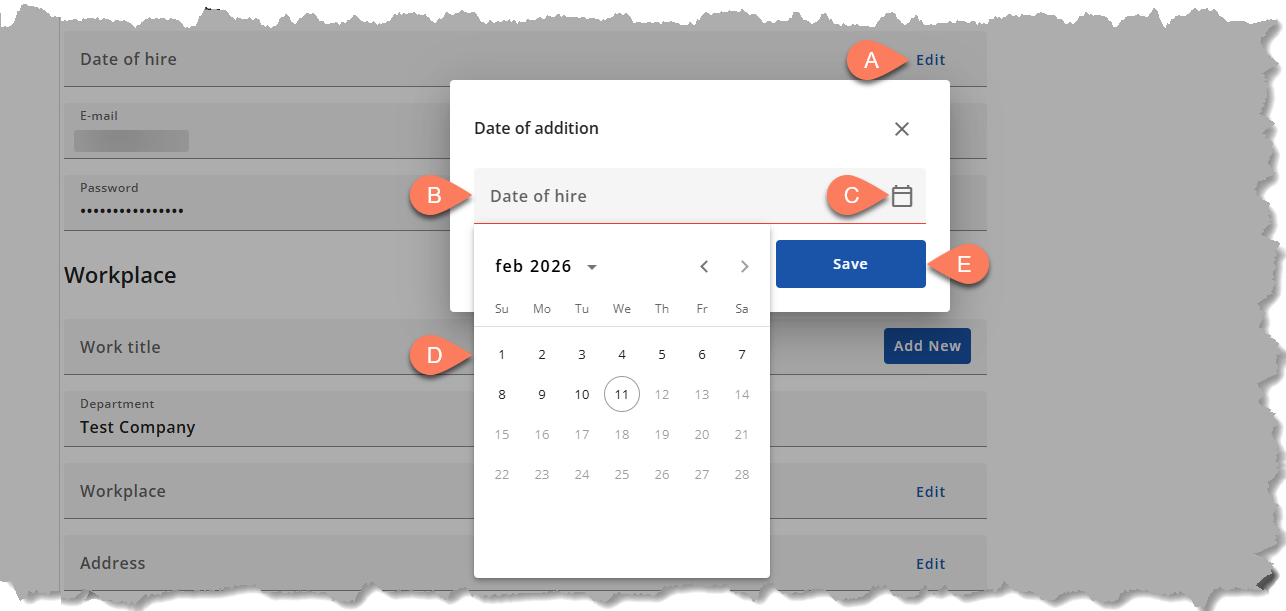
- Click the A Edit button on the field.
- Enter the date in the B field in MM/DD/YYYY format, or click the C calendar icon.
- In the D dropdown calendar, select the date.
- Click the E Save button.
Find data
Records in ChemCenter can easily grow to thousands. It may be difficult and time consuming to scroll through these records to find the one you need. To make it easier and quicker to find records, use the search and filter controls in ChemCenter.
- Search – The search function allows you to find the record(s) matching the text entered in the search field.
- Filter – The filter function allows you to only show records that satisfy the criteria you set.
View data
Many records are displayed on the screen at a time. You can customize the number of records shown on the screen as well as the order they’re listed.
Items per page
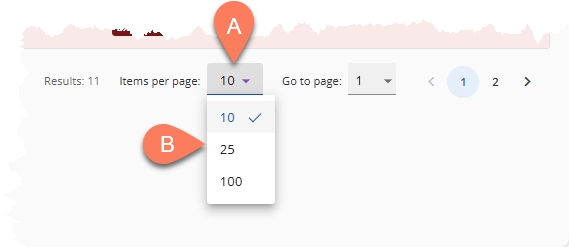
In some screens, you can indicate the number of items displayed at a time. Follow the steps below.
- Scroll to the bottom of the screen.
- Click the dropdown button beside A Items per page.
- From the B dropdown options, select the number of items you’d like to display.
- The numbers may vary depending on the screen.
Sort
The sort function allows you to determine how records are ordered on the screen. Click the  sort button wherever it appears in the ChemCenter to sort data from A to Z, and vice versa.
Expand and collapse sections
Many records are often displayed simultaneously on the screen. For a more organized view, only the records’ basic details are displayed by default. This collapsed view may be expanded to show more details by clicking the record’s row. The same control is also applicable to some sections in ChemCenter.
Export data
Any data in ChemCenter can easily be exported in different formats, depending on the data type. Data may be exported outside ChemCenter by clicking the export icon  wherever it appears.