
Creating a New Chemical Application Request
User Roles
- All users
Overview
In ChemCenter, requests for new chemicals are known as applications. Each application is detailed for health, safety, and environment safety assessment.
Application Details
Each organization’s application form may be customized to include the unique needs of the organization. ChemCenter enforces default fields that are commonly required in evaluating a chemical for health, safety, and environmental risks and hazard.
The default fields are organized into two sections: application and usage information.
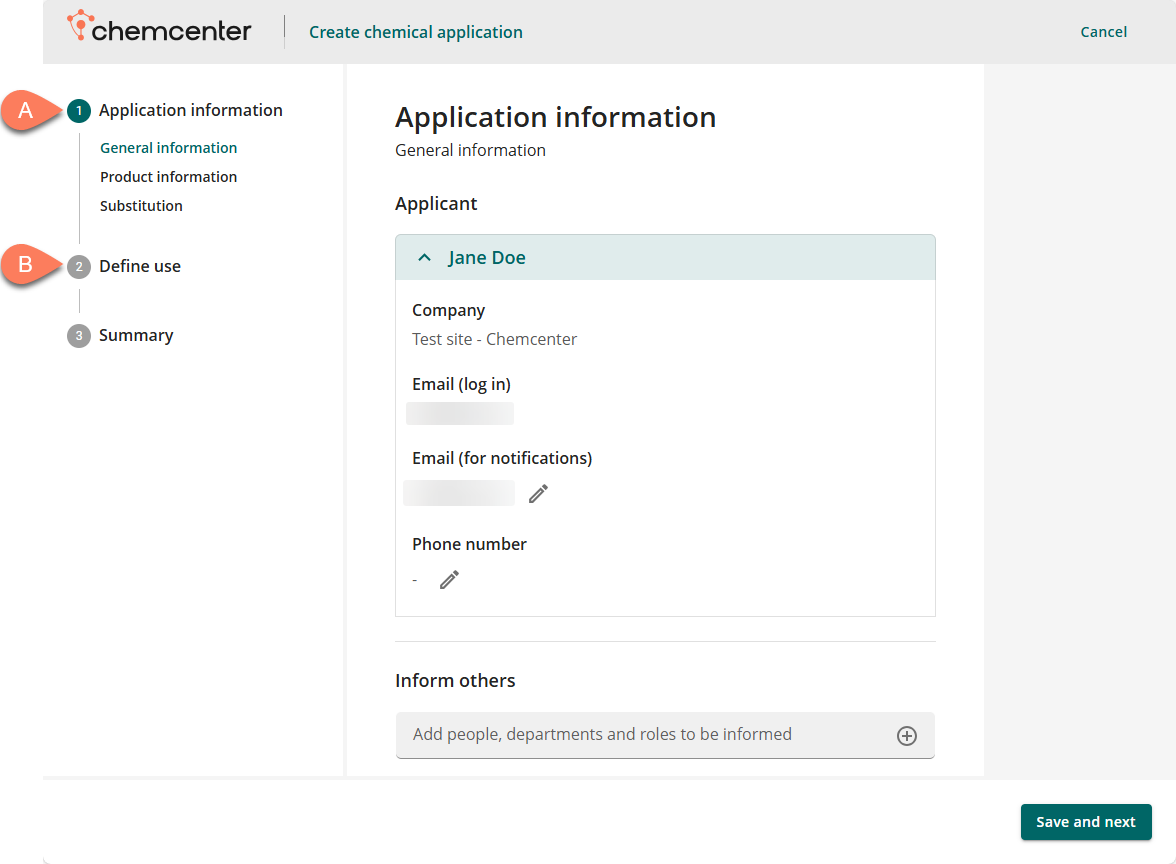
Application information
The Application information contains details related to the application and the chemical itself.
- General information – Information about the applicant, where to send notifications about the application, and which people, departments, or roles to notify about the application’s progress.
- Product information – Information about the product, this consists of the safety data sheet(s) related to the product(s) in the application.
- Substitution – Information about possibly substituting the product with a different one.
Usage information
This section contains details on how the chemical will be stored and used. It’s one of the factors in determing the hazard and risk rating of the chemical.
How to
There are two ways to create an application. You can either Start a new application or Reuse an existing application.
Start a new application
Applications may be started from scratch by following the steps below:
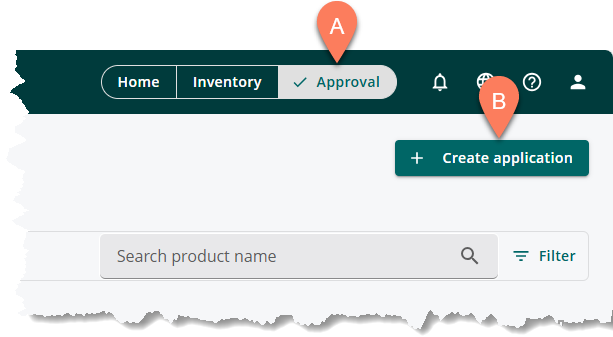
- Navigate to the A Approval tab.
- Click the B Create application button at the top right corner.
- Provide application information as described in the linked articles below.
Application and usage information are required before an application may be submitted. The articles below discuss in detail how to enter these required information.
Reuse an existing application
Applications may be reused in ChemCenter to help save time spent in filling chemical applications, especially for frequently used applications. Reusing an application creates a duplicate of it which is then used for the new application. The original application is not affected by any change you make in the duplicate.
Follow the steps below.
Reuse application options
An application may be reused from any of the three major tabs which may be accessed from the global header: Home, Inventory, and Approval.
In the Home tab, you can start the reuse application process by following the steps below.
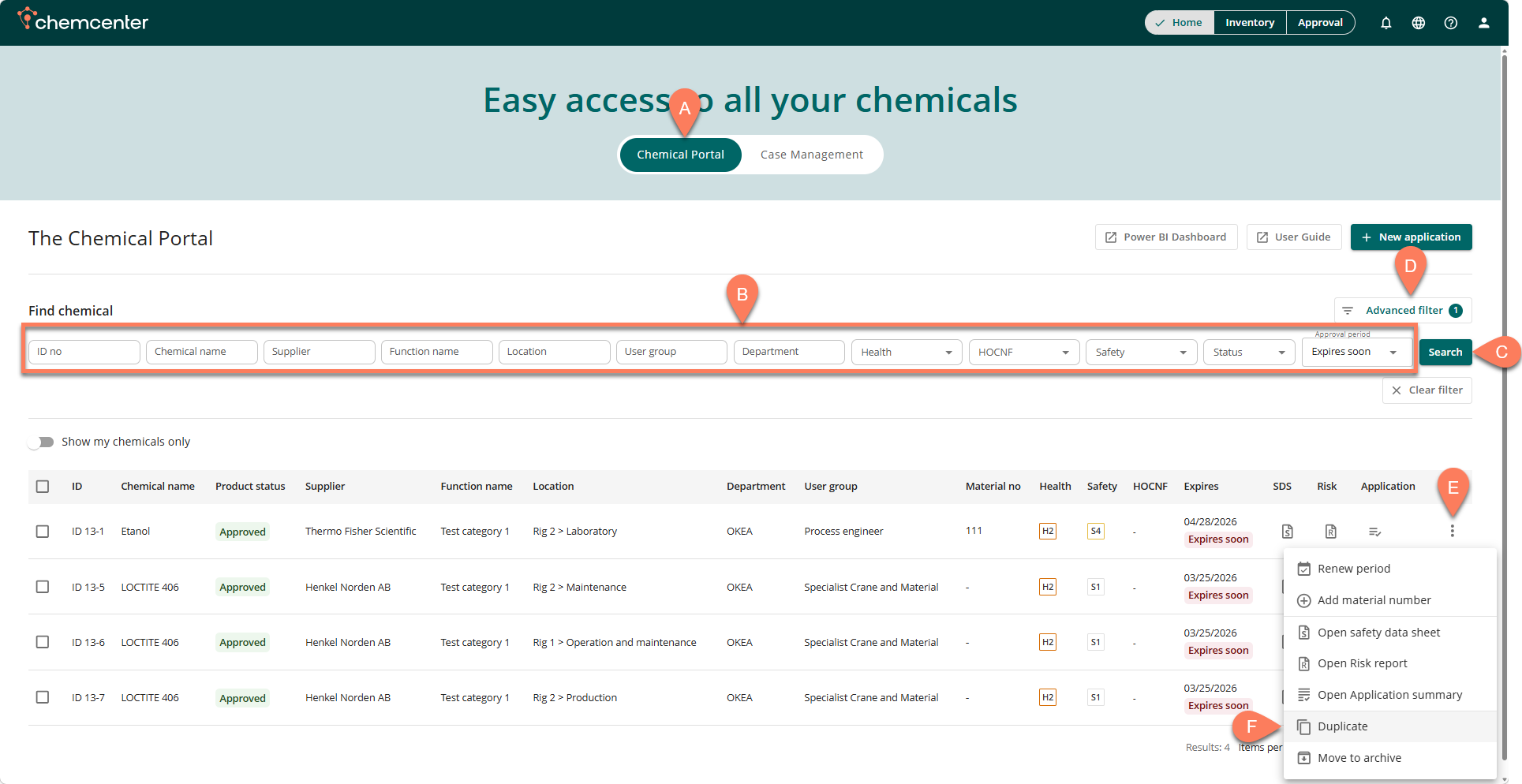
- Navigate to the A Chemical Portal.
- The Home tab opens here by default.
- To easily find the application you’d like to duplicate, add B filters at the top then click the C Search button.
- For more filter options, click the D Advanced filter button.
- When the application appears in the table, click its E vertical ellipsis button.
- From the dropdown options, select F Duplicate.
In the Inventory tab, you can start the reuse application process by following the steps below.
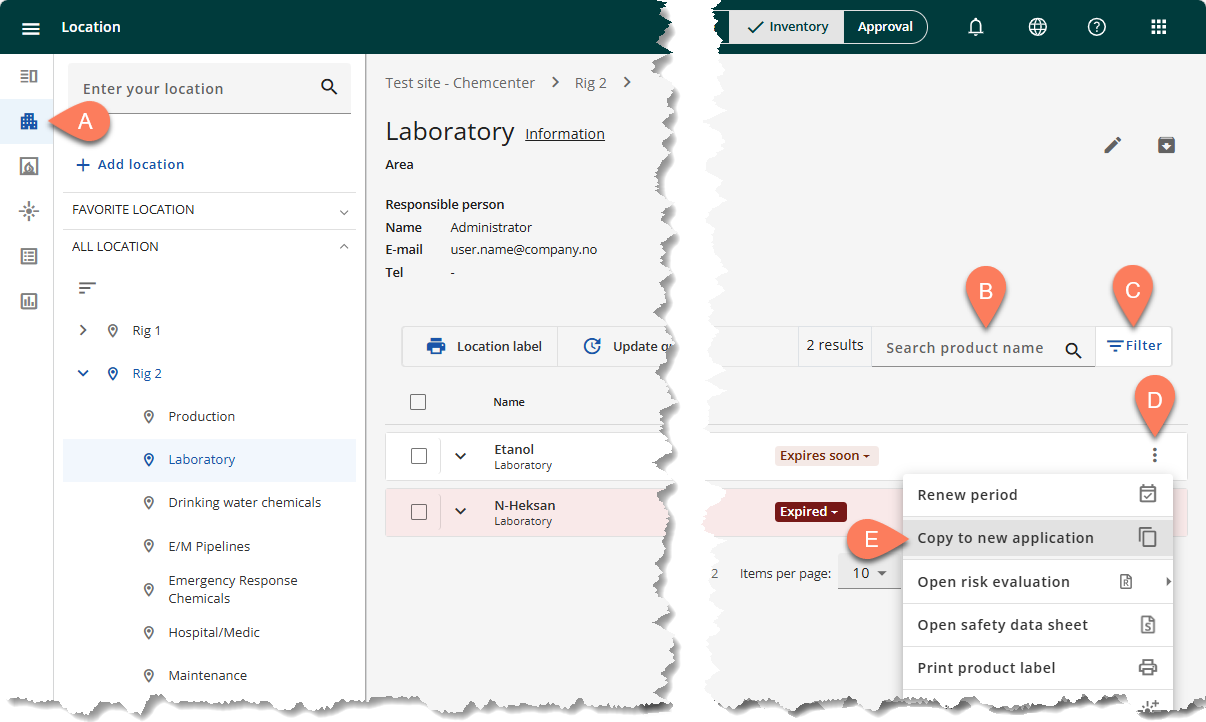
- Navigate to the A Location tab from the side navigation pane.
- Open the location where the chemical is assigned.
- To easily find the chemical you’re looking for, use the B Search bar or the C Filter button.
- When the chemical appears on the screen, click its D vertical ellipsis button.
- From the dropdown, select E Copy to new application.
In the Approval tab, you can start the reuse application process by following the steps below.
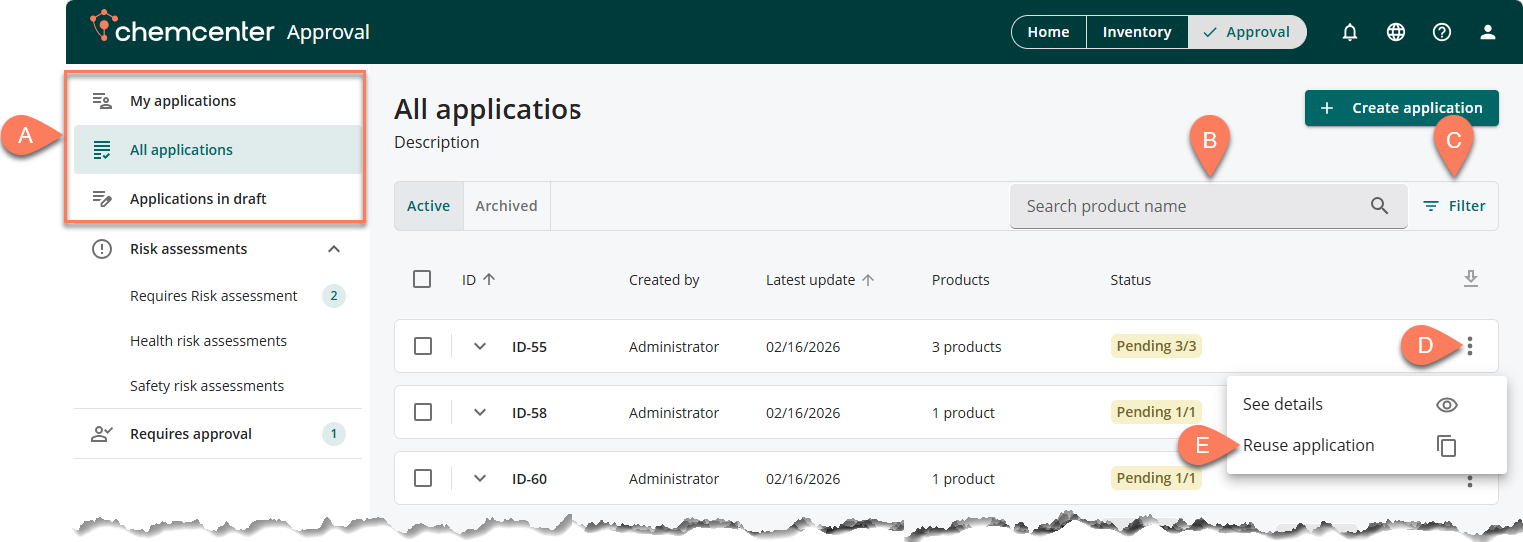
- Navigate to the A tab where you can find the application you’d like to reuse.
- The application may be in the My applications, All applications, or Applications in draft tab.
- Enter the product name in the B search box or the C Filter button to easily find applications including the product.
- When the application appears, click its corresponding D vertical ellipsis then select E Reuse application from the options.
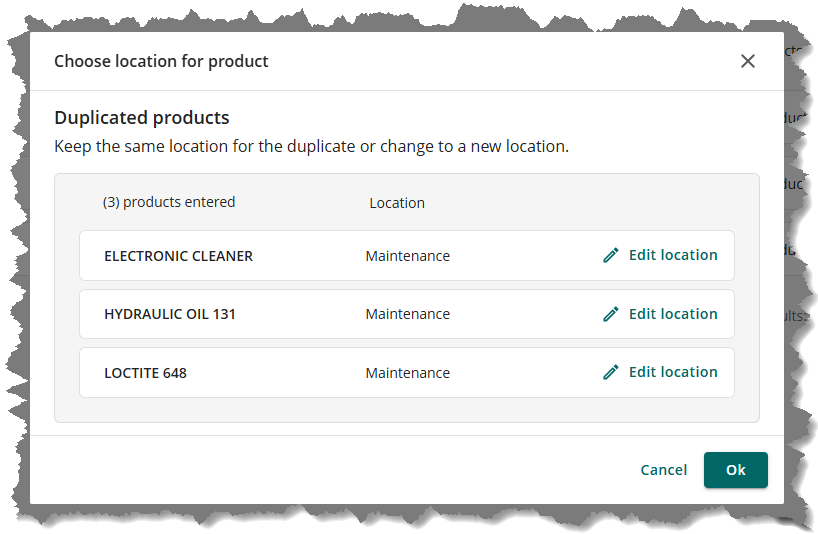
The Choose location for product window will appear where you can Edit location of the products, if needed. Once done, click the OK button.
The duplicated application will open in draft where you can change the application details as needed. If no changes are needed, proceed to the next section.
Submit application
The last section of the application is the Summary where you can review all the information you’ve provided so far. If you’d like to change any information, click the Back button at the bottom to go back to the section you’d like to update. Otherwise, click the Submit button.
After submission
Once the application has been submitted, an overview of the included products will be displayed. This summary indicates which products need Risk Assessment and which ones were automatically approved. You can track the progress of your applications by navigating to the Approval tab which opens by default to My applications.