Printing Container Labels
User Roles
- Read-only
- Administrators
Overview
Product labels are those attached to the chemicals’ containers to guide employees on site on how to properly and safely store them. ChemCenter generates WS label (Workplace Safety) and ECHA label (European Chemicals Agency Label) with a QR code which links to the product’s details.
This article details the steps on how you can create and customize product labels in ChemCenter.
How to
Access a product and print label
There are two areas in ChemCenter where you can access a product and print its product label. These areas are both in the A Inventory tab: the B Substance Index and the C Location tab.
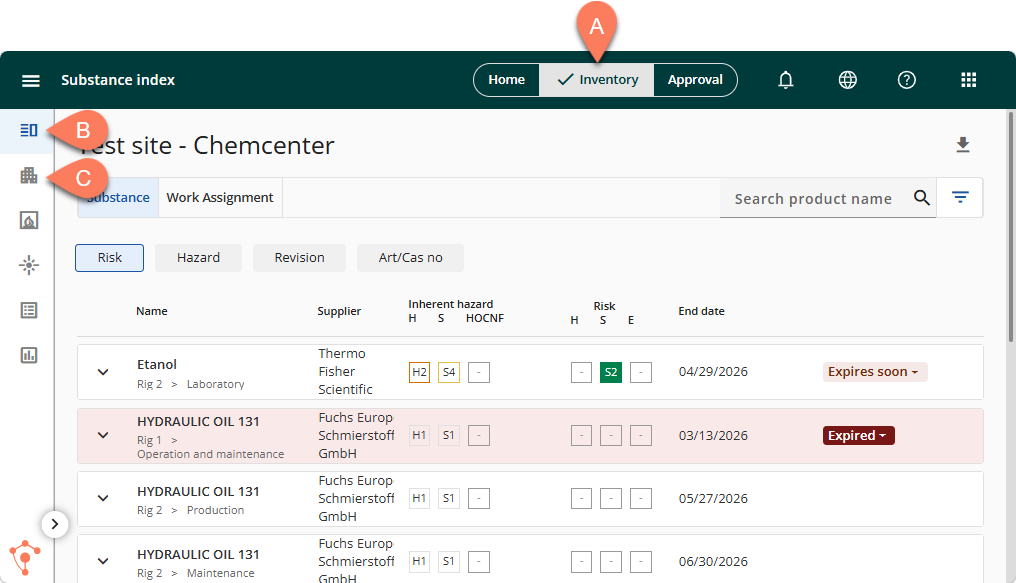
The Substance Index is accessible to all users. From here, you can print a product label by following the steps below:
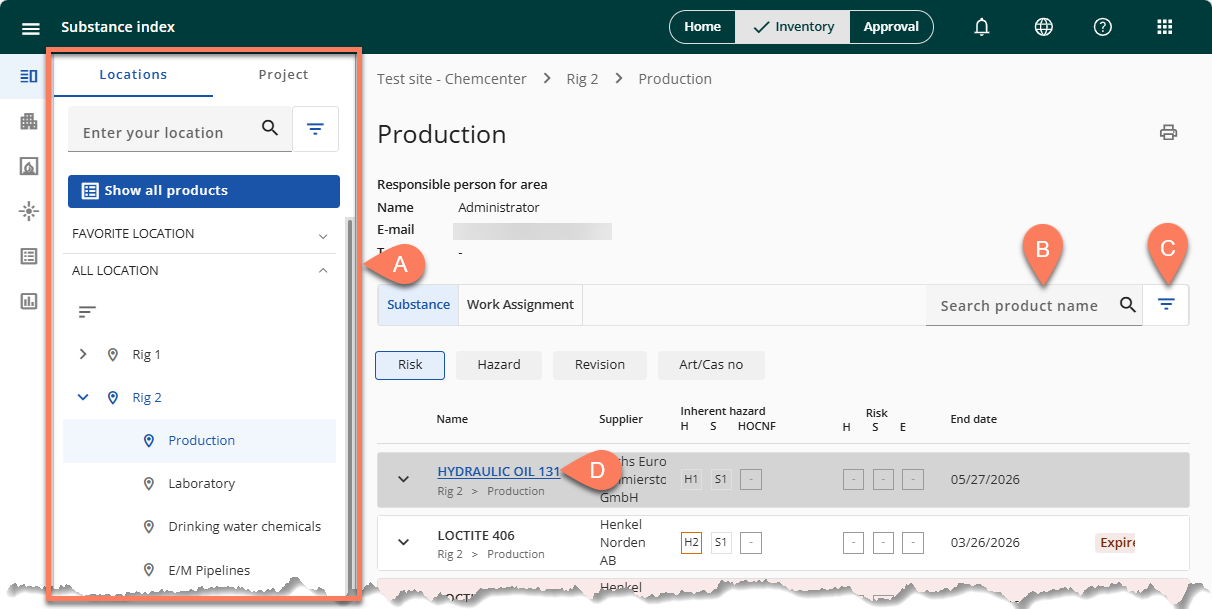
- From the A side navigation pane, open the location where the product is assigned.
- Use the B search bar or apply C filters to quickly find the product.
- When the product appears on the screen, hover over the D product name and click when it becomes a hyperlink to open its product page.
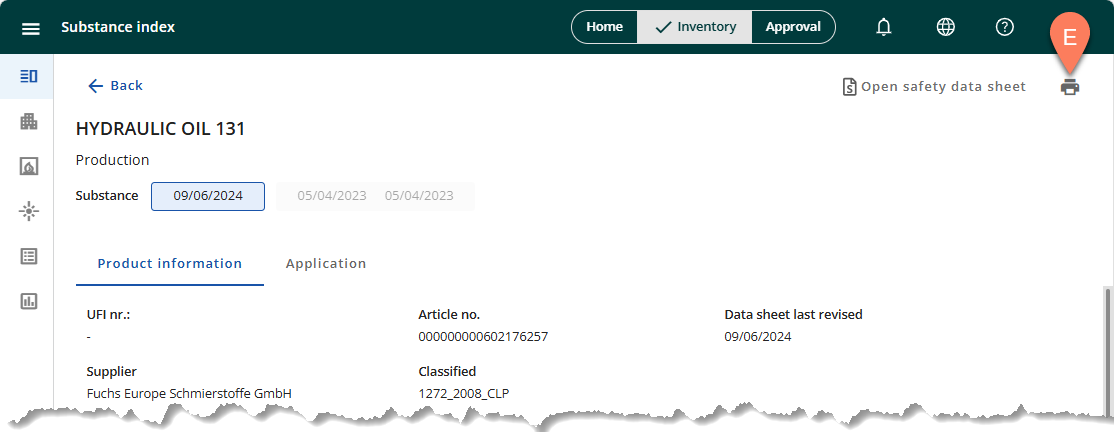
- On the product page, click the E Print label button at the top.
Access to the Location tab must be specifically assigned to your user role. If it’s accessible to you, you can print the product label by following the steps below.
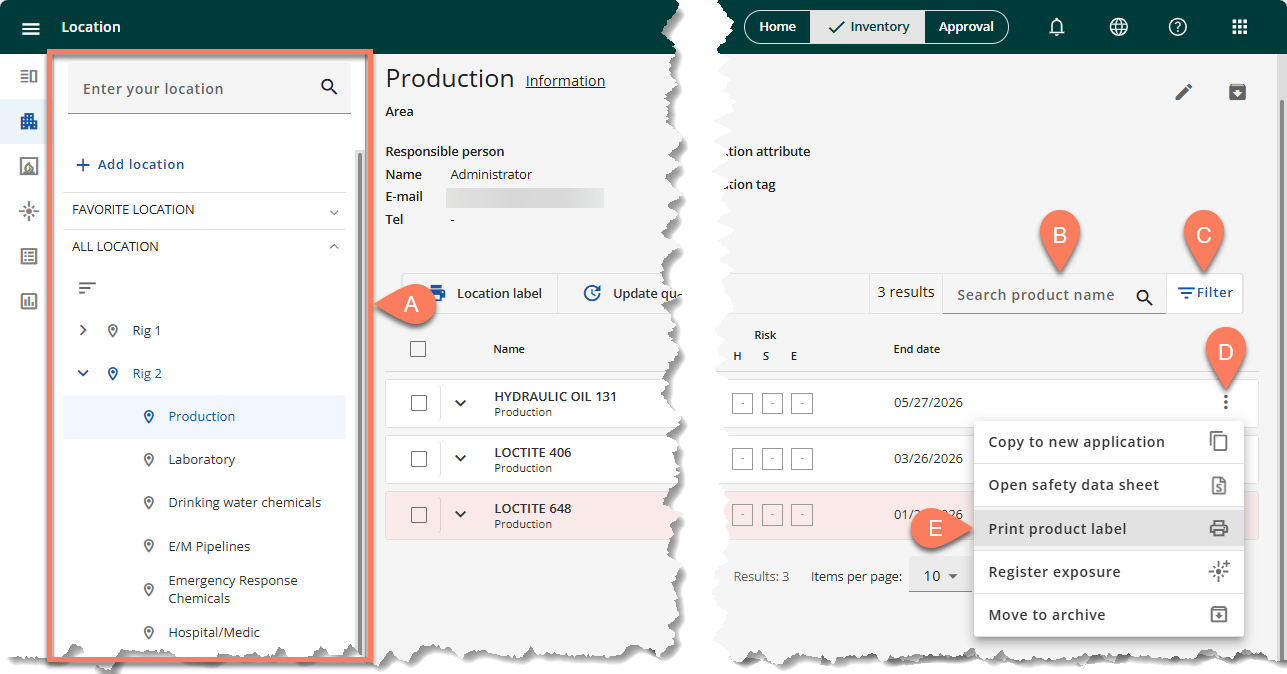
- From the A side navigation pane, open the location where the product is assigned.
- Use the B search bar or apply C filters to quickly find the product.
- When the product appears on the screen, click its D vertical ellipsis button.
- From the dropdown, select E Print product label.
Customize and generate product label
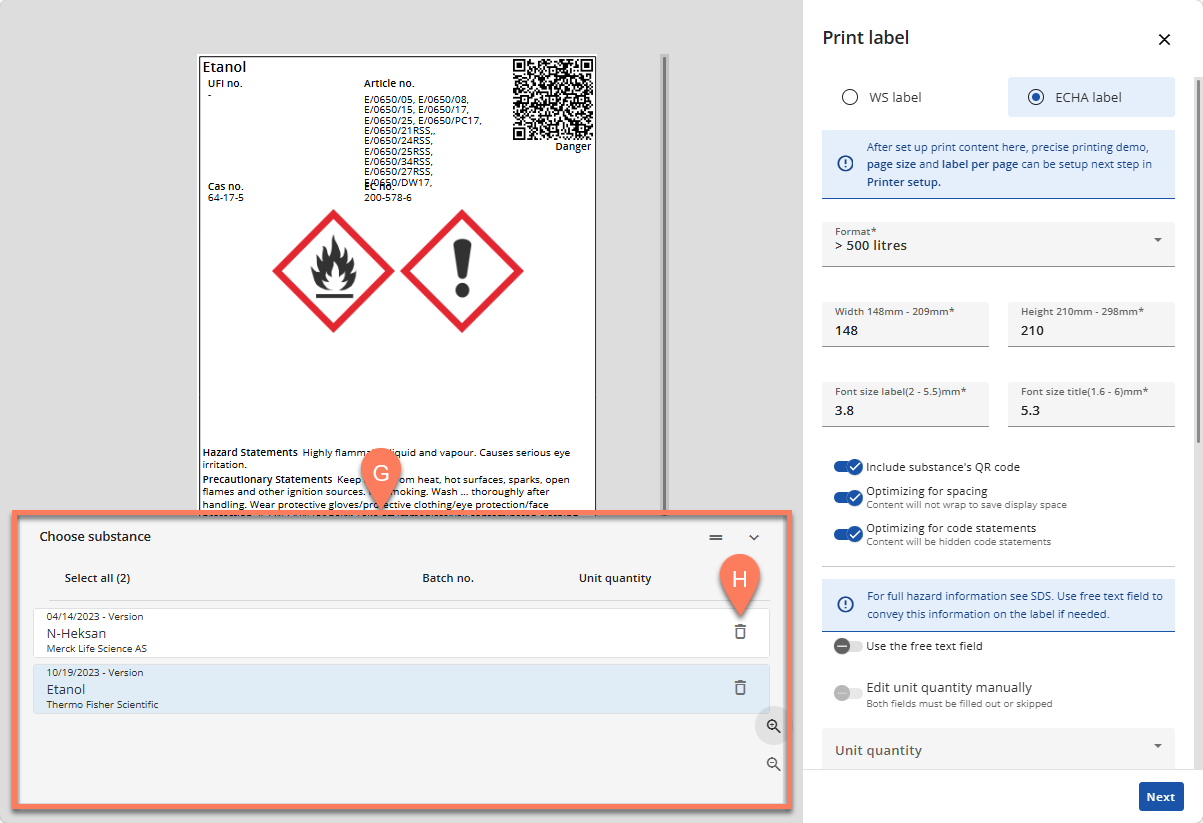
ChemCenter uses data extracted from the chemical’s SDS to provide the details needed for both WS label and ECHA label. The header and footer of both labels contain the following details:
- Header – Chemical name and identification numbers such as UFI no., Cas no., Article no., and EC no.
- Footer – Supplier and their contact number
The product label displays a signal word corresponding to the risk and hazard level of the chemical such as Danger or Warning.
WS label
The WS label (Workplace Safety) displays chemical’s QR code linked to its product page in ChemCenter. Its customizable details are as follows:
- A Label size – The paper size which will be used for printing the label. Make sure that it matches the size of the chemical’s bottle where the product label will be attached.
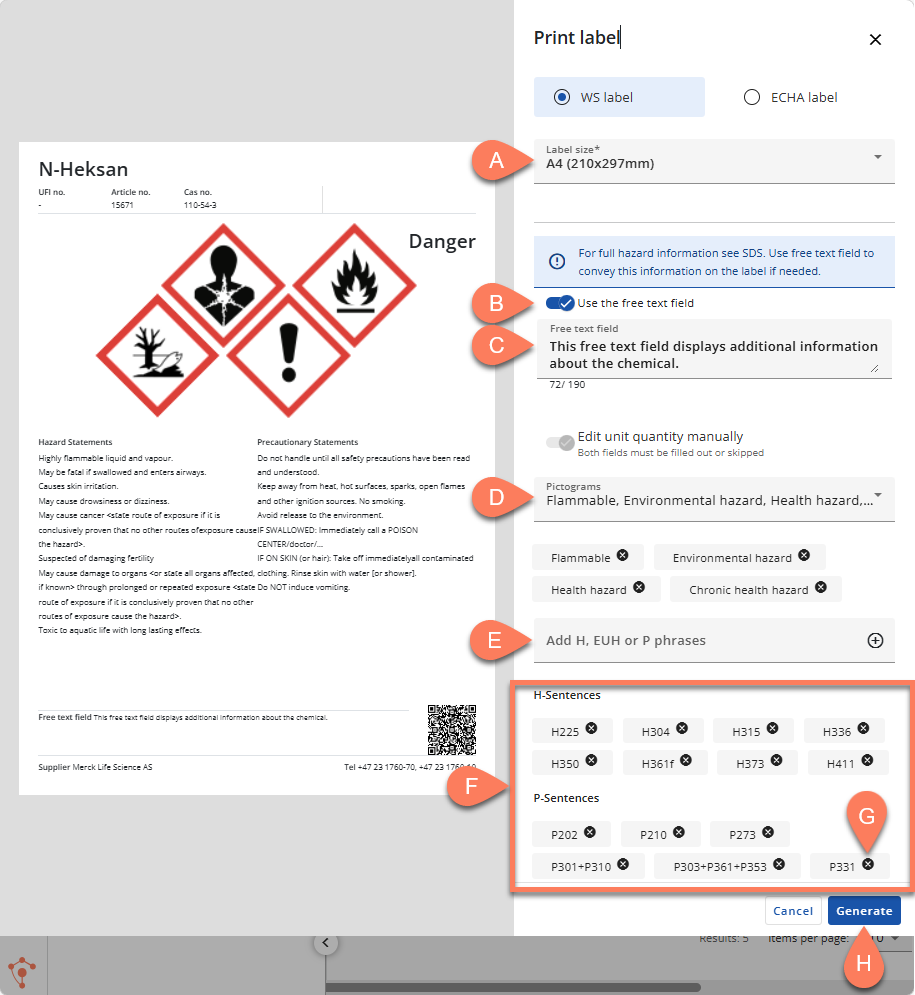
- Free text – Any important information that’s not conveyed by the existing details may be added to the product label via the B free text field which appears when the C free text toggle switch is enabled.
- D Pictograms – Select which pictograms you’d like to display on the product label.
- E H, EUH, or P phrases – Select the H, EUH, or P phrases you’d like to display on the product label.
- F Included sentences – Displays all the sentences you’ve selected to display on the product label. You can remove any one by clicking the corresponding x button such as G.
After customizing the WS label, click the H Generate button to generate and download the label as a PDF file. The file will also open in the Print window.
ECHA label
The ECHA (European Chemicals Agency Label) label’s customizable details are as follows:
- A Format – Controls the B paper and C font sizes of the product label based on the container size.
- B Paper size – Overrides the paper size associated with the selected A format.
- C Font size – Overrides the font size of the label and title associated with the selected A format.
- D QR code – Show or hide the QR code which links to the product page in ChemCenter.
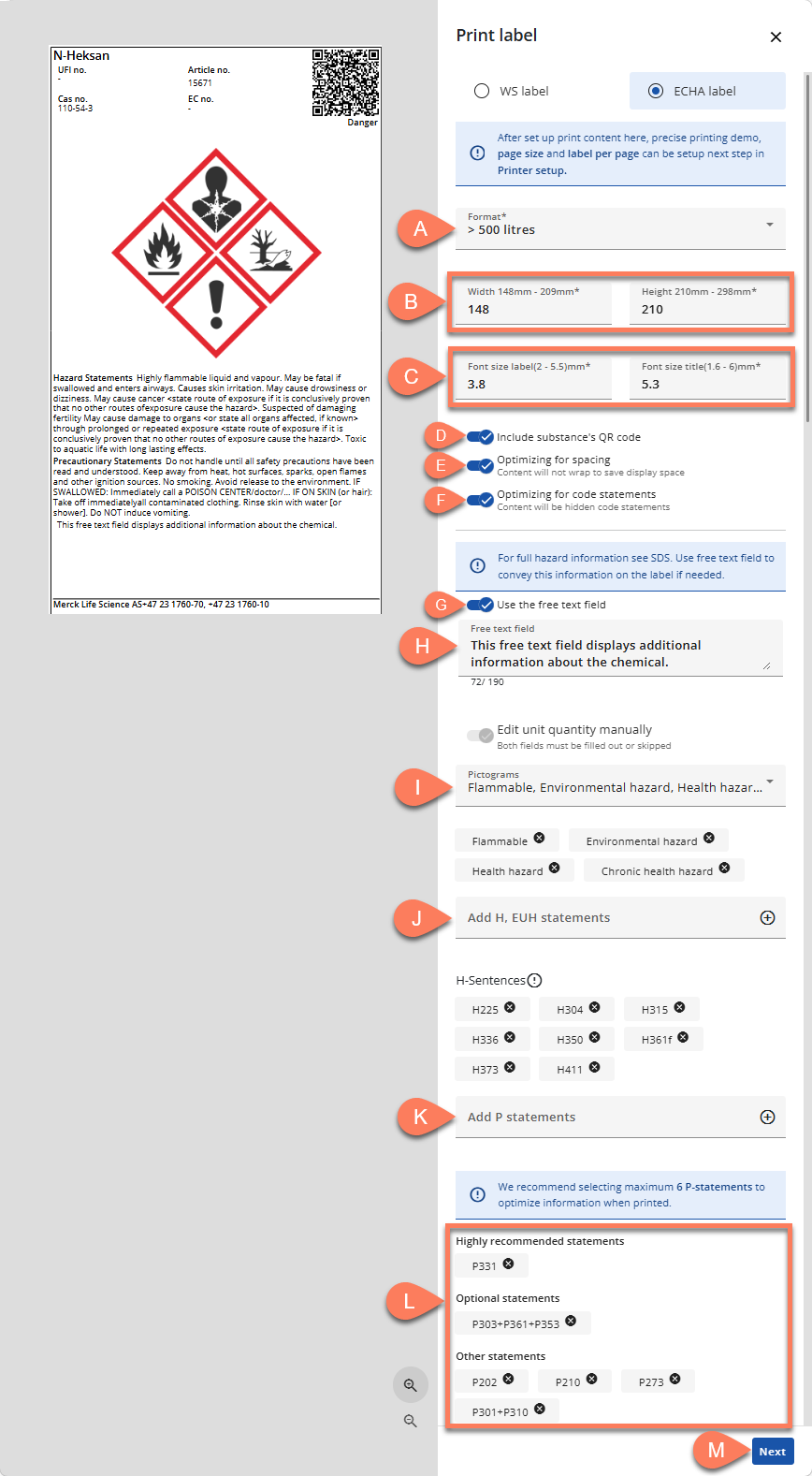
- E Space optimization – Controls if the content will wrap or not to save display space. If this toggle switch is disabled, only one statement will be displayed in each line.
- F Show/hide code statements – Controls if the codes will be displayed with the Hazard Statements and Precautionary Statements. If this toggle switch is disabled, only the statements will be displayed and not the codes.
- Free text – Any important information that’s not conveyed by the existing details may be added to the product label via the G free text field which appears when the H free text toggle switch is enabled.
- I Pictograms – Select which pictograms you’d like to show on the product label. The selected pictograms are displayed below the dropdown field.
- J H and EUH statements – Select H and EUH statements you’d like to show on the product label.
- K P statements – Select P statements you’d like to show on the product label.
- L P Statement suggestions – Ranks the selected P-statements by importance so you know which ones must be included as the optimum number of P-statements to display in the product label is 6.
Any statement can be easily deselected by clicking its corresponding x button.
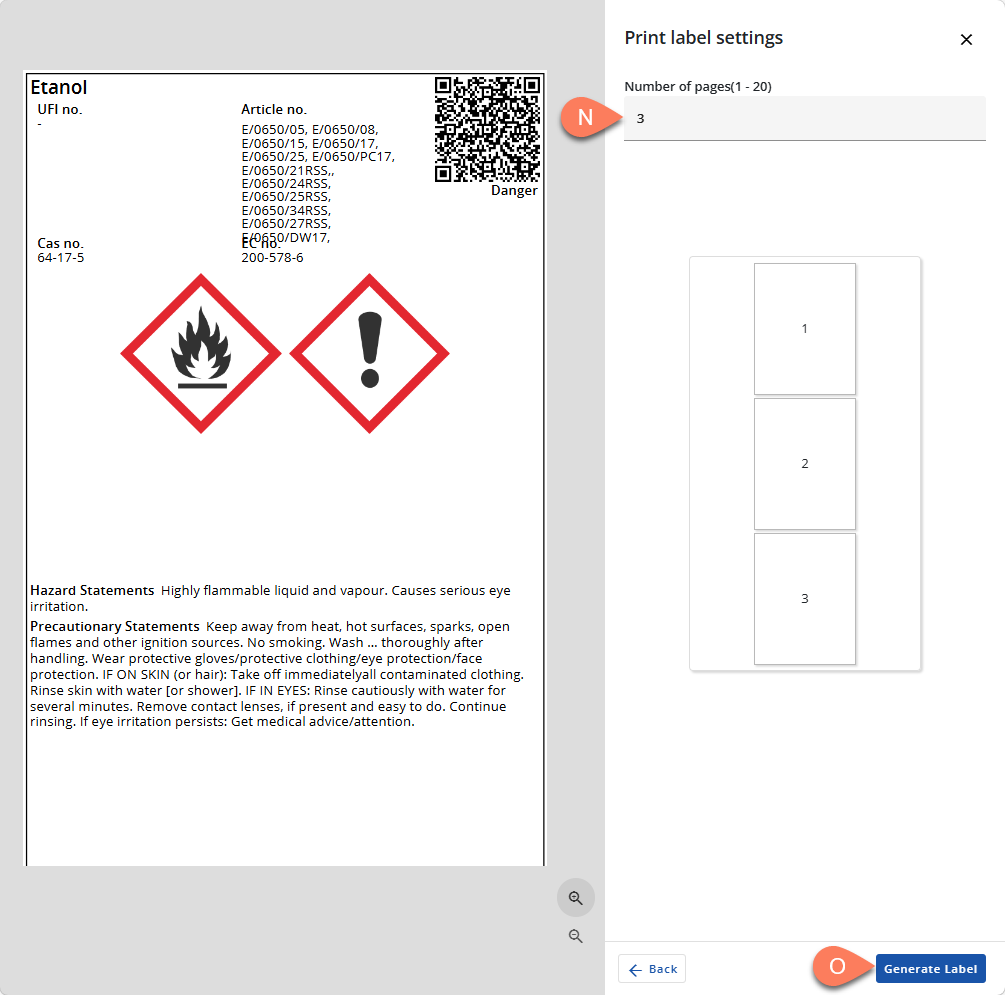
After customizing the ECHA label, click the M Next button to open the Print label settings where you can N enter the number of pages you’d like to print. Click the O Generate Label button after you’ve indicated the number of pages to print.
Print multiple product labels
In the Location tab, multiple product labels of the same format can be printed simultaneously. Follow the steps below.
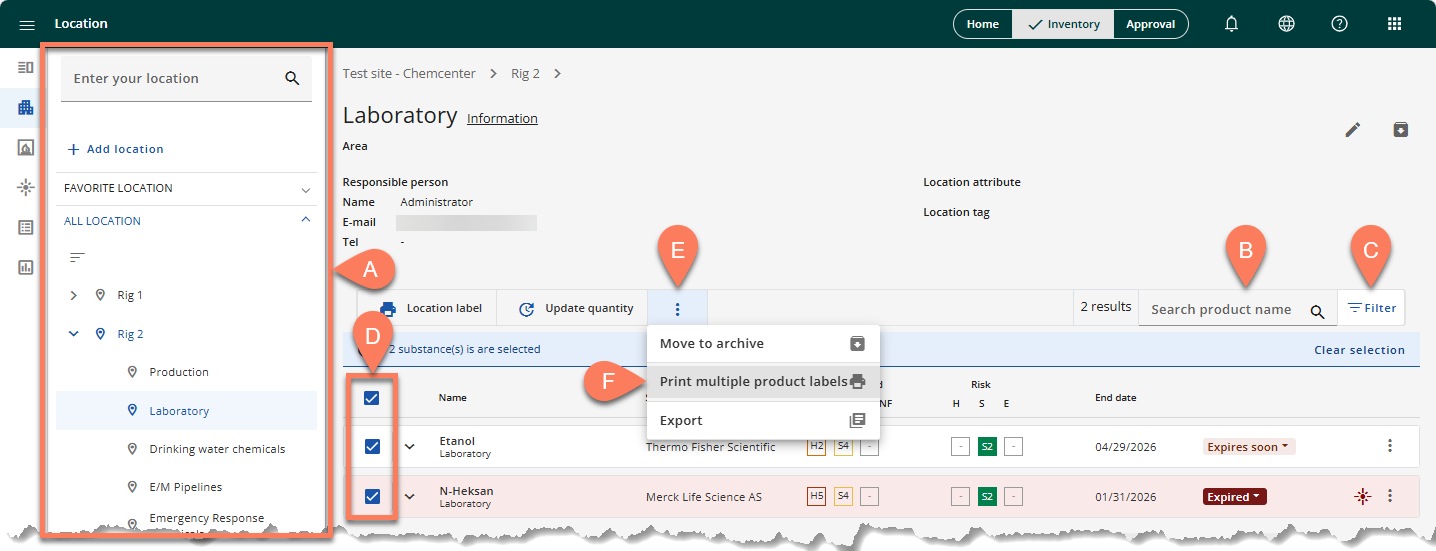
- From the A side navigation pane, open the location where the product is assigned.
- Use the B search bar or apply C filters to quickly find the product.
- When the product appears on the screen, select its corresponding D checkbox.
- Select all the products you’d like to print a label for.
- Click the E vertical ellipsis button at the top.
- From the dropdown, select F Print multiple product labels.
- The selected products will open in the customization page.
- Customize the label for each product. Refer to the Customize and generate product label section above for a guide on the fields for each label format.
- Select the product you’d like to customize the label for in the G Choose substance slide-up panel.
- If you’d like to remove a product from the selectio, click its corresponding H delete button.