
Adding Products to an Application from Database
User Roles
- Read-only
- Administrator
Overview
The Product information section of the application form is where you add products to the application. There are two ways to add a product or a chemical to an application: by A adding from database or by B uploading data sheet manually.
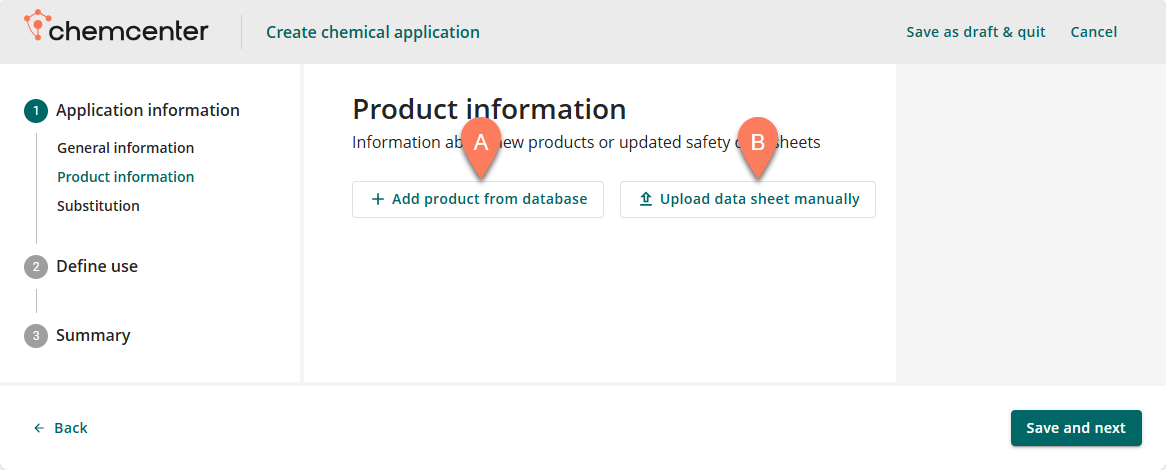
This article covers the steps on how to add a product to an application from a database.
How to
Select database
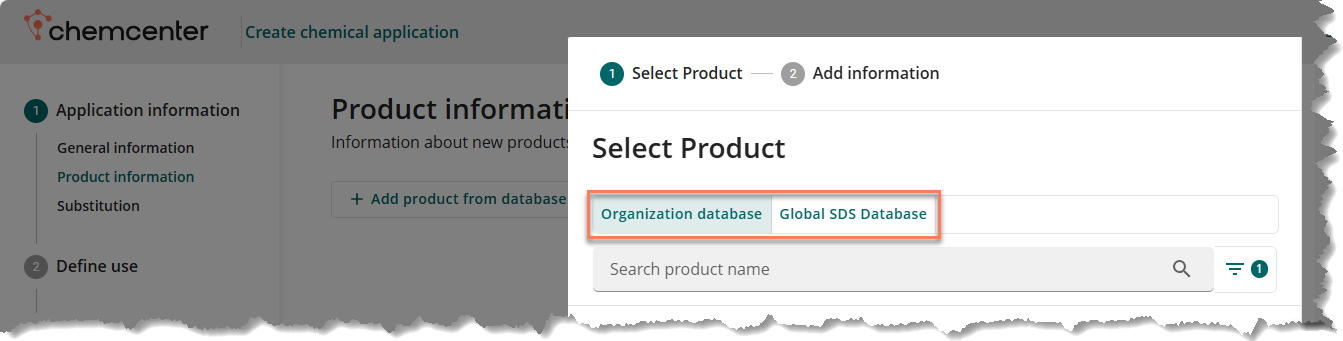
There are two databases you can add a product from: your organization’s database, or the ChemCenter’s Global SDS Database.
- Organization database – Contains safety data sheets that were already added from previous applications.
- Global SDS database – ChemCenter’s own database which contains over 13 million verified Safety Data Sheets (SDS) in multiple languages.
The tabs at the top of the window that appears when you click the Add product from database button allow you to select which database to add a product from.
Select products
To add a product from the selected database,
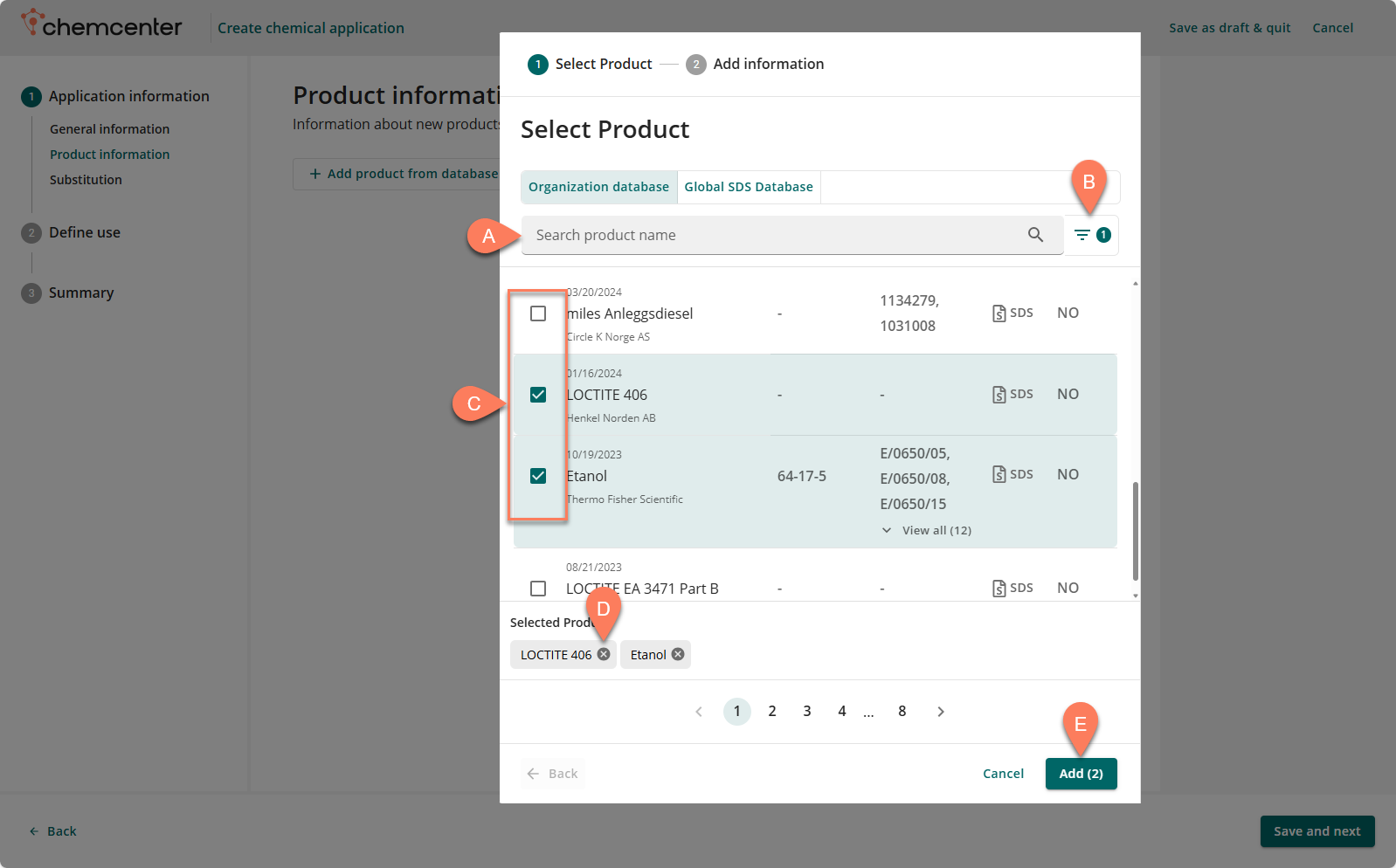
- Click the Add product from database button.
- Find the product you’d like to add to the application. To easily find the product,
- Enter the product name in the A search bar.
- Or use the B filter function to narrow down the list.
- Select the C checkbox corresponding to the product you’d like to add.
- To select multiple products, repeat steps 2 and 3.
- The selected product(s) will be listed at the bottom. You can deselect any one by clicking the corresponding D x button.
- Once you’ve selected the product(s), click the E Add button at the bottom right corner.
Add information
All applications require information used to evaluate the added product(s) for health, safety, and environment risk and hazard. The information required are location, reason for applying, and usage category. These details may be added to the selected products one-by-one or simultaneously.
Follow the steps below.
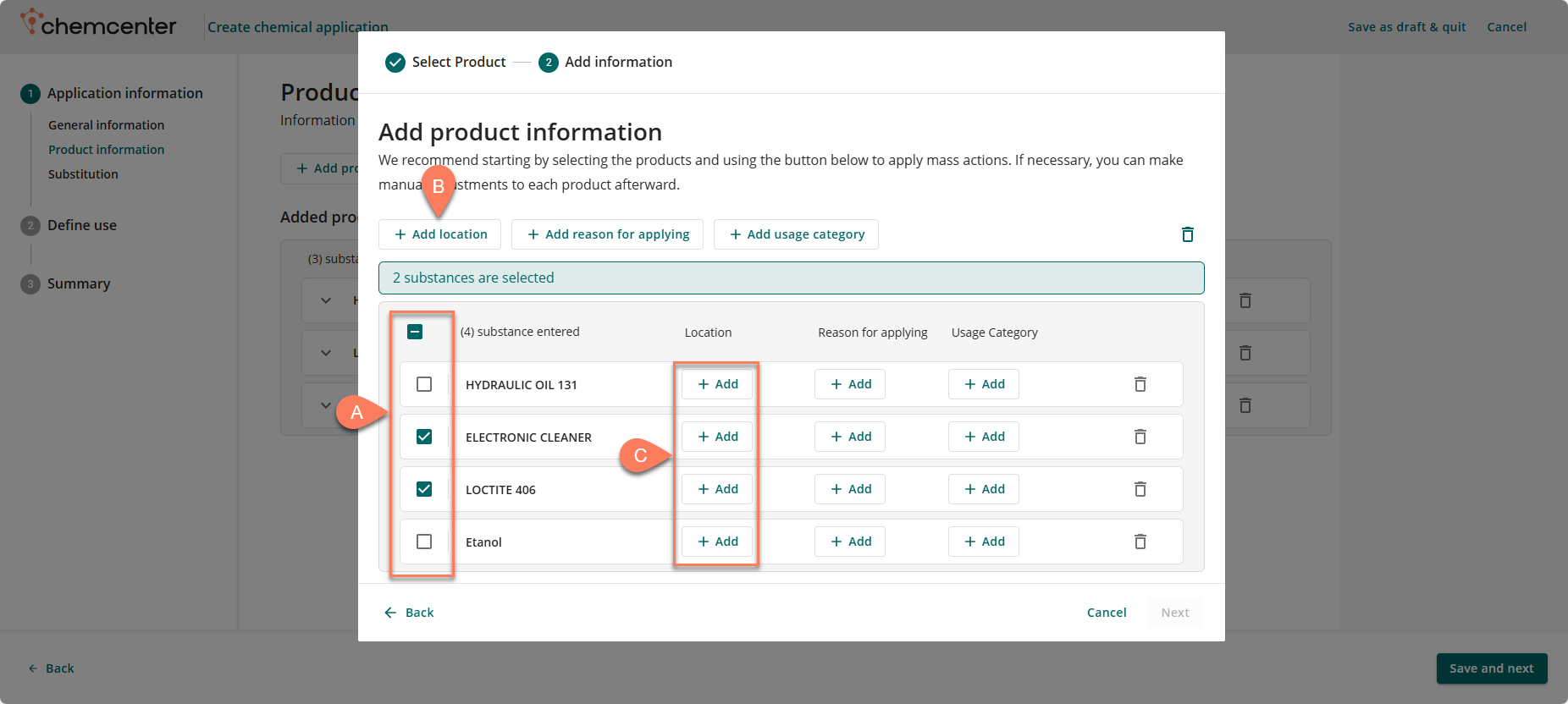
- If you’d like to add the details simultaneously for multiple products, select their corresponding A checkboxes.
- To select all products, click the checkbox on the header.
- To add the location where the product(s) will be used:
- If you have multiple products selected, click the B Add Location button at the top.
- For a single product, click the corresponding C Add button in the Location column.
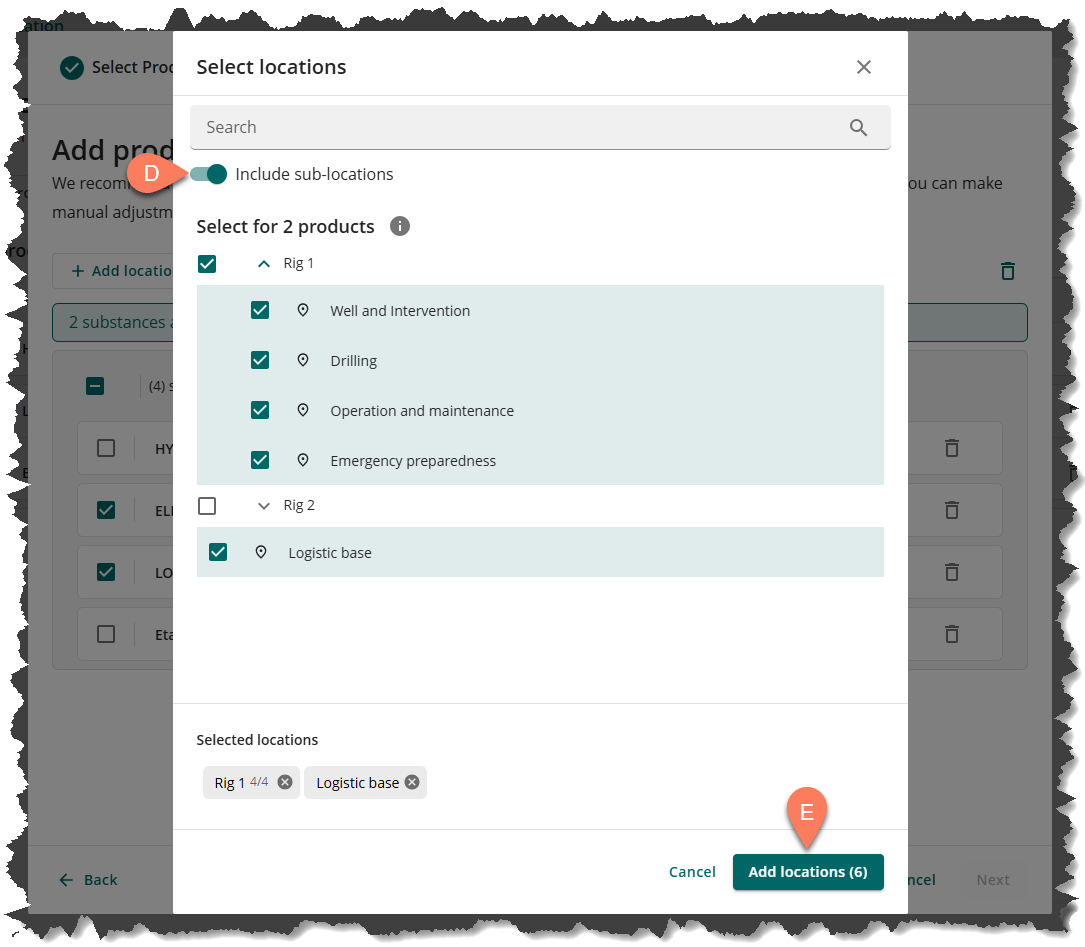
- In the Select locations window, select the locations and sub-locations where the product will be used.
- Click the D Include sub-locations toggle at the top so all sub-locations of a selected location will also be selected.
- Once all locations are selected, click the E Add locations button at the bottom right.
- Repeat the same process using the corresponding buttons to Add reason for applying and to Add usage category.
- Reasons for applying and usage categories are custom options added by your ChemCenter Admin, often based on existing practices in your organization.
- Substitution information may be linked to reasons for applying if the product is set to replace an existing one.
- Usage categories are the common uses for chemicals in your organization and is helpful when evaluating the product’s risk level and the associated PPE and barriers requried.
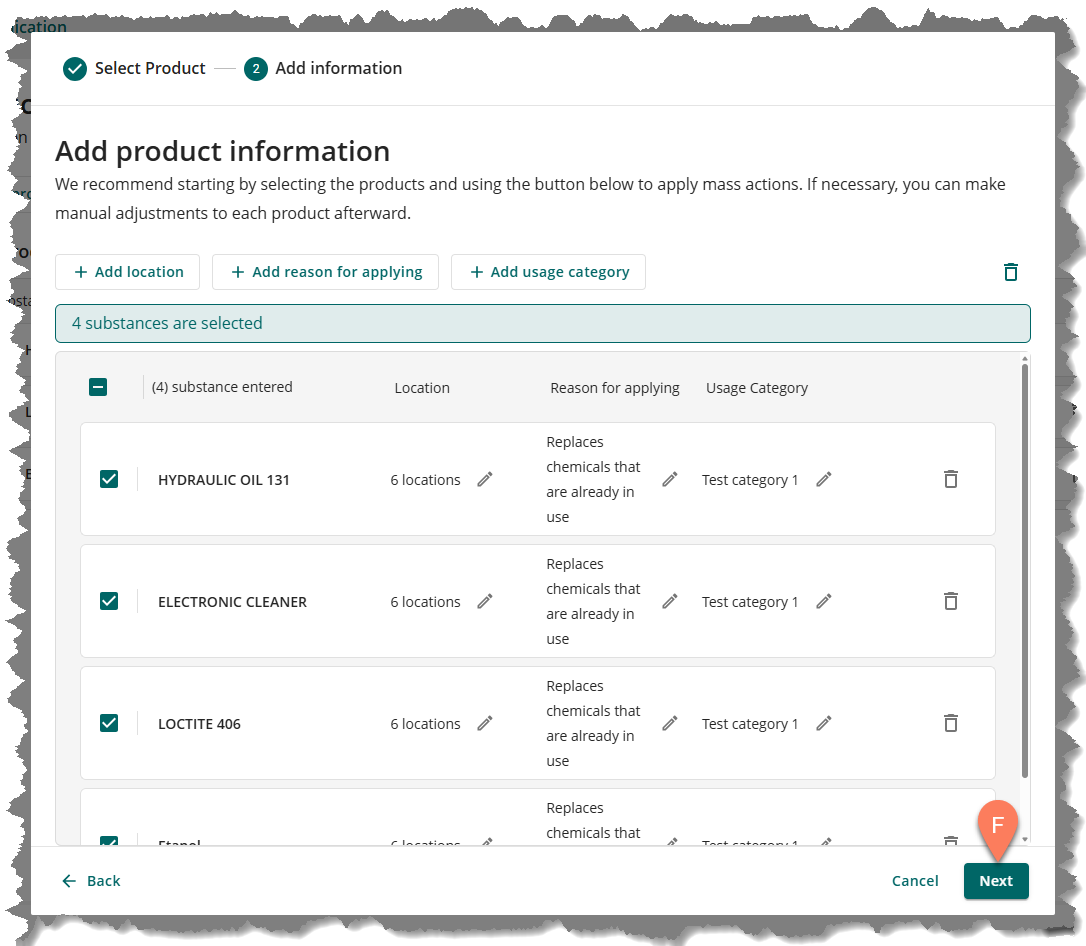
Once all information has been provided for all of the products, click the Next button.
Next steps
After you’ve added products from your Organization database, you can add more products by repeating the process above. You can also add more products by adding from the Global SDS database or by uploading a data sheet manually.
If you’re done adding products, click the Save and next button at the bottom right corner of the screen to continue to the next step of the application process: Adding substitution products.